
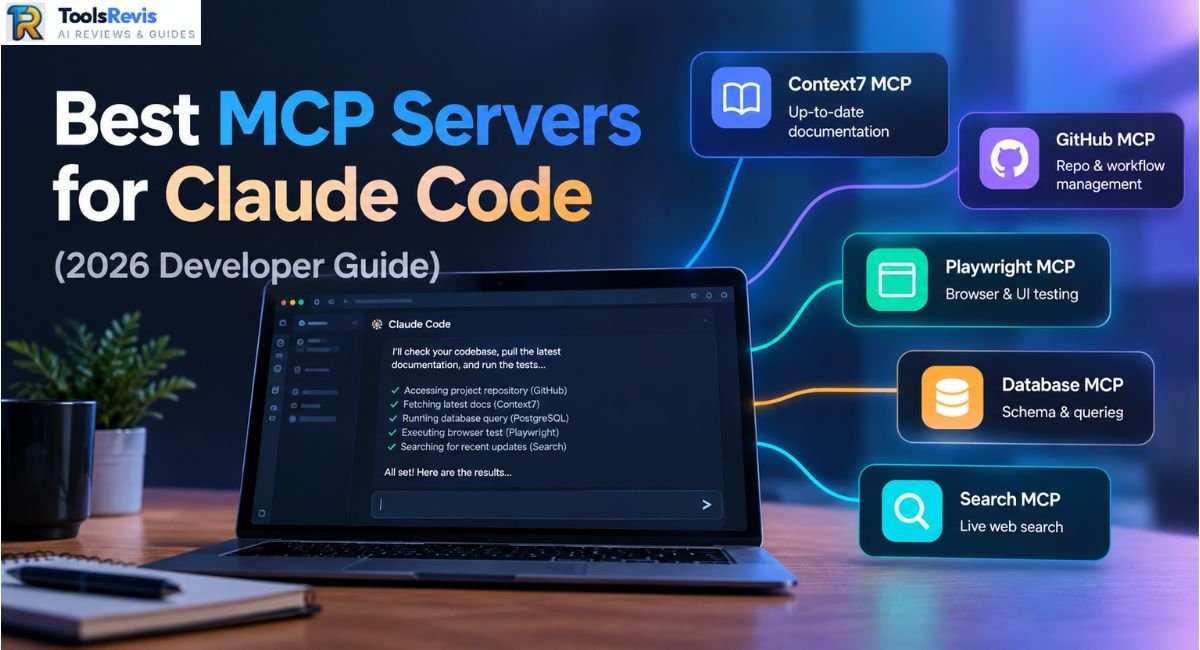
Claude Code doesn’t know your codebase, your database schema, or what shipped in yesterday’s framework release — until you connect it. MCP servers are how you close that gap.
Most Claude Code frustrations trace back to the same root cause: the model is reasoning from training data that’s already stale, and it can’t see anything outside the files you’ve fed it. Ask it about a Next.js 15 API route or a library that shipped a breaking change last quarter, and it will confidently guess wrong.
Model Context Protocol (MCP) fixes this by giving Claude Code a standard way to call out to live systems — documentation servers, your GitHub repo, a running database, a headless browser — instead of relying on memory alone. That matters whether you’re running Claude Code in your terminal or through the desktop app. If you’re comparing the best MCP servers for Claude Code, the key is matching each server to a specific development task rather than installing every available integration.
This guide covers which MCP servers are actually worth installing in 2026, how to set them up on both CLI and Desktop, and why installing too many of them will slow your agent down rather than speed it up.
What is Model Context Protocol (MCP) and Why Use It with Claude Code?
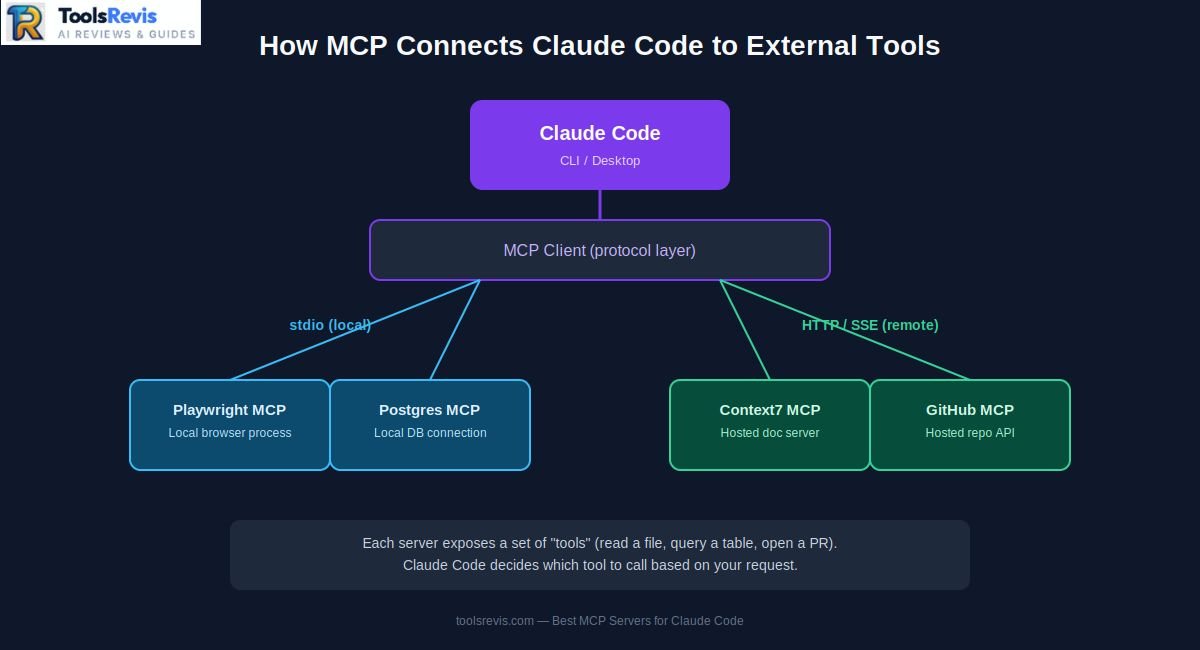
MCP is an open protocol that lets Claude Code call external tools and data sources through a standardized interface, rather than every integration needing custom, one-off code. A server exposes a set of “tools” — read a database table, search the web, open a pull request — and Claude Code decides when to call them based on what you ask it to do.
The two transport approaches you’ll encounter most often are stdio and Streamable HTTP. Stdio runs an MCP server as a local process and communicates over standard input/output, while Streamable HTTP connects to a remote server over HTTP. SSE was an earlier MCP transport and is now generally treated as a legacy approach. The transport affects how you install and authenticate a server, not the underlying capability it provides.
The practical effect is that MCP turns Claude Code from a tool that only sees pasted text and open files into one that can actively pull in current documentation, inspect your actual schema, or click through a UI to verify a bug — closer to an autonomous agent than a chat window. This is possible in large part because MCP is an open, publicly documented specification rather than a proprietary Anthropic format, which is why the same servers work across Claude Code, Claude Desktop, and other MCP-compatible editors.
Quick Comparison: Top MCP Servers at a Glance
Before going deep on each one, here’s how the servers covered in this guide stack up. This comparison makes it easier to identify the best MCP servers for Claude Code based on documentation, repository workflows, browser testing, database access, and live web search. This covers the best mcps for Claude Code by category rather than a single ranked list, since “best” depends on what part of your workflow you’re trying to fix.
The “Access Considerations” column holds far more weight than it initially appears. A documentation server or a search server can’t do much damage if it misbehaves — worst case, it returns a bad result. A database server with write access, on the other hand, can drop a table if an agent misinterprets an instruction. Keep that distinction in mind as you decide what to actually grant access to, not just what to install.
Best MCP Servers for Claude Code (Categorized)
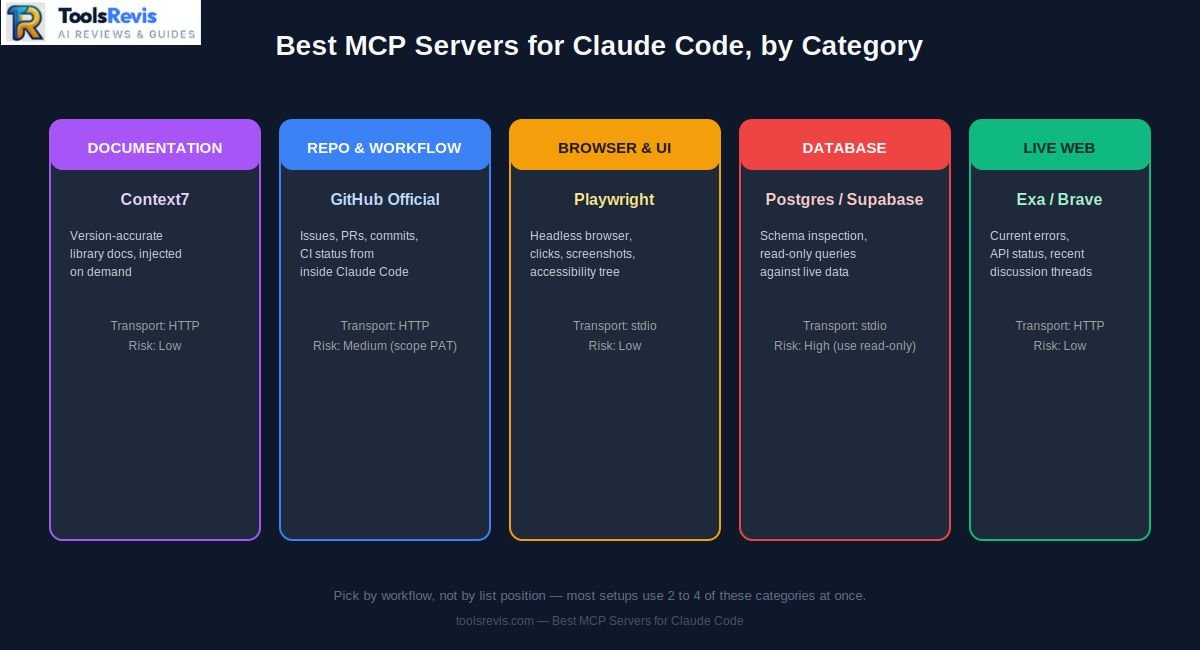
The best MCP servers for Claude Code cover five practical categories: Context7 for accurate library documentation, the official GitHub MCP for repo and PR management, Playwright for browser and UI testing, Postgres/Supabase for database inspection, and Exa or Brave Search for live web results. Each solves a different gap in Claude Code’s default knowledge, so the right pick depends on what you’re building rather than a single universal “best” tool.
1. Context7 MCP Server (Best for Up-to-Date Docs)
Context7, built by Upstash, targets the single most common failure mode in AI-assisted coding: the model confidently writing against an API that changed six months ago, or one that never existed. Instead of relying on what Claude learned during training, Context7 exposes two tools — one that resolves a library name to a Context7-compatible ID, and one that pulls current, version-specific documentation and code examples for that library straight from the source.
In practice, you add “use context7” to a prompt (or let Claude Code invoke it automatically when it recognizes a library reference), and the server injects the relevant doc snippet directly into context before Claude writes any code. That’s a meaningfully different approach from traditional prompt engineering, where you’d have to paste documentation manually or hope the model’s training data was current. Because it’s a hosted service with a public HTTP endpoint, Context7 doesn’t require you to maintain a local index of every library you use — it fetches on demand.
2. GitHub Official MCP Integration: Streamlining Repositories & Workflows
GitHub’s official MCP server connects Claude Code directly to your repository’s operational layer: reading and commenting on issues, reviewing and creating pull requests, checking CI/CD run status, and making commits — all without you tabbing over to a browser. This turns Claude Code into something closer to a junior collaborator that can see the same repo state you do, rather than a tool that only knows what’s in your open editor tabs.
Because this server can write to your repository, scoping its permissions matters more than with a read-only documentation server (more on this in the security section below). It’s a natural complement to other autonomous agent modes in coding tools, and for teams already using automated code review workflows, it gives Claude Code visibility into that same review pipeline instead of operating separately from it.
3. Playwright MCP Server (Best for Browser & UI Testing)
Playwright MCP gives Claude Code control of a real (or headless) browser — navigating pages, clicking elements, filling forms, and capturing screenshots. What sets it apart from a generic “take a screenshot” tool is that it reads the page’s accessibility tree, so Claude can reason about what’s actually on the page (buttons, labels, form fields) rather than trying to interpret a static image.
For frontend work, this closes a real gap: Claude can write a component, then actually load it in a browser, click through the flow you described, and report back whether it rendered and behaved as expected — instead of you copy-pasting console errors back into the chat.
4. Supabase & PostgreSQL MCP Options (Best for Database Inspection)
Database MCP servers can let Claude Code inspect schemas, understand table relationships, and run queries against connected databases. Supabase’s official MCP is particularly useful for Supabase projects, while PostgreSQL users should choose a currently maintained MCP implementation and follow its permission model. These connections can help with schema inspection, query debugging, migrations, and ORM development.
This is also the category where you should be most careful. A recurring warning in developer discussions of MCP setups is that connecting an agent to a database with a full read-write connection string means a misinterpreted instruction can run a destructive query — including a dropped table — with no confirmation step in between. The practical fix is straightforward: create a dedicated, read-only database role for the MCP connection string, and only grant write access temporarily and deliberately if you actually need Claude to modify data.
Find the Right AI Tool for Your Workflow
Not sure which AI coding tool fits your development workflow? Use our AI Tool Finder to explore options based on your needs.
Try the AI Tool Finder →5. Exa & Brave Search MCP (Best for Live Web & Neural Search)
Exa and Brave Search MCP servers give Claude Code the ability to search the live web mid-task — pulling up a recent Stack Overflow thread, checking whether a third-party API is currently reporting an outage, or finding a changelog entry for a library update that postdates Claude’s training data. This is distinct from Context7: Context7 is purpose-built for library documentation, while Exa/Brave are general-purpose search, better suited to open-ended questions like “is this error message a known issue” rather than “what’s the current signature of this function.”
Reddit & Developer Picks: Real-World Community Stacks
The pattern that shows up consistently across developer write-ups and r/ClaudeAI community discussions isn’t a ranked list — it’s a convergence on a small starter set. Independent trackers of Claude Code MCP setups repeatedly land on the same three servers as the default starting point: GitHub, Context7, and Playwright, with everything else added only once a specific workflow demands it.
The complaint that shows up just as consistently is the inverse problem: developers who install everything that looks useful end up with an agent that’s slower to respond and worse at picking the right tool, because connected servers can add tool definitions and increase the number of tools available to the agent on each turn.
As highlighted in a popular wmedia.es developer tip sheet tracking Claude Code setups, having five servers connected is “enough for 95% of real work”; go past that and “context bloats and the per-turn decision space becomes a maze.” That’s a community report reflecting how people actually run their setups, not an official Anthropic guideline, so treat it as a pattern worth taking seriously rather than a hard rule.
The practical takeaway repeated across Reddit developer workflows: start with two or three servers tied to what you’re actually doing that week — a repo server if you live in pull requests, a documentation server if you’re working in an unfamiliar framework — and add database or search servers only when a real task stalls without them. Community discussions generally favor starting with a small set of MCP servers tied to the workflow rather than installing a large catalog on day one.
How to Set Up Claude MCP (CLI & Desktop Configuration Guide)
Claude Code gives you two ways to add an MCP server: a one-line terminal command, or hand-editing a JSON config file. The CLI is faster for day-to-day use; the config file is useful when you’re scripting setup across a team or troubleshooting a server that won’t connect.
Method 1: Adding Remote & Local MCP Servers via Terminal (CLI)
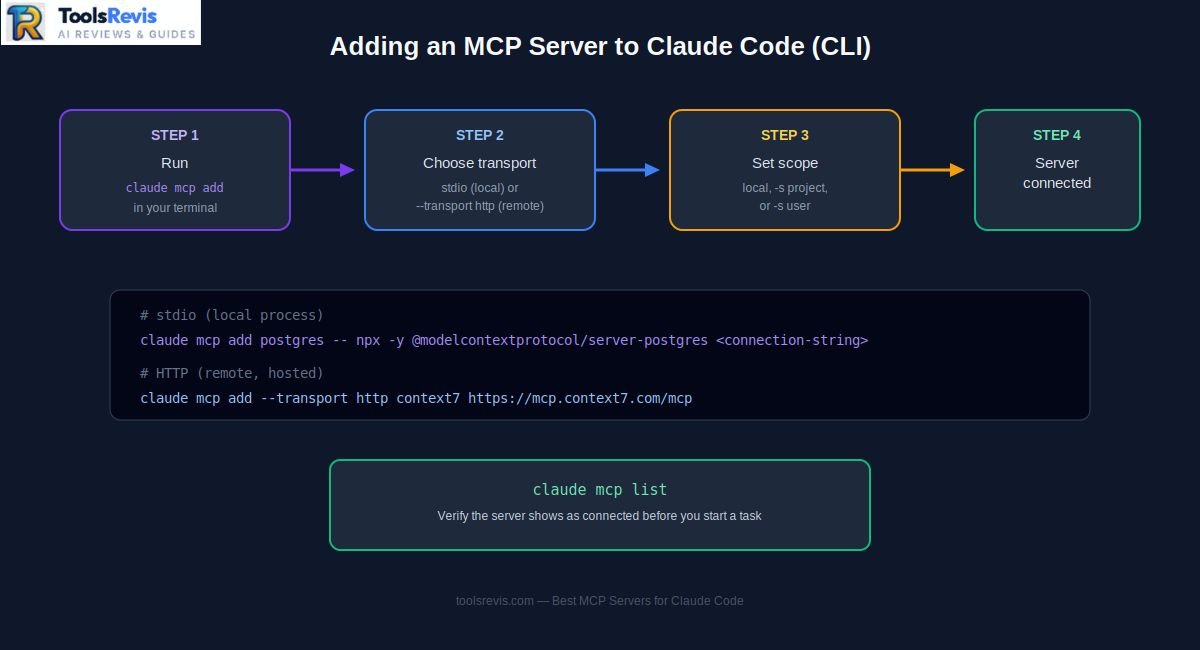
For a local server that runs as a background process (stdio transport), pass the command after –:
For a remote, hosted server (HTTP transport), point it at the server’s URL instead:
If a remote server requires authentication, pass a header directly in the same command:
Scope matters here. By default, claude mcp add adds the server locally for your current project only. Add --scope project to write it to .mcp.json at the project root, so it’s shared with teammates through git, or --scope user to make it available across every project on your machine:
Run claude mcp list at any point to see what’s currently connected, and claude mcp remove <name> to take one out.
Method 2: Manual Setup via claude_desktop_config.json
Claude Desktop supports MCP through Desktop Extensions and remote MCP connectors, while manual JSON configuration remains useful for some local or custom setups. On macOS this lives at ~/Library/Application Support/Claude/claude_desktop_config.json; on Windows it’s typically under %APPDATA%\Claude\claude_desktop_config.json. Open it in any text editor and add a mcpServers object:
For local stdio servers, each entry typically specifies a command and args. Claude Desktop supports local MCP servers as well as remote MCP connections. For hosted servers, use the provider’s current Desktop or custom-connector setup instructions rather than assuming a local JSON configuration is required. Restart Claude Desktop after editing the file for changes to take effect.
For current Claude Desktop setups: check Settings → Extensions for supported Desktop Extensions, or use a remote MCP connector when the provider offers one. Manual configuration is mainly useful for custom or local setups.
If you’re standardizing this across a team, working from pre-built Claude Code configuration templates is faster than hand-writing every entry from scratch.
How Many MCP Servers Should You Run? Avoiding Context Bloat & Tool Collisions
Every MCP server you connect isn’t free, even when it’s sitting idle. Connected MCP servers can add tool definitions to Claude Code’s context, increasing token overhead and the number of tools the agent has to consider. The exact overhead depends on the client, server, tool definitions, and how tools are loaded.
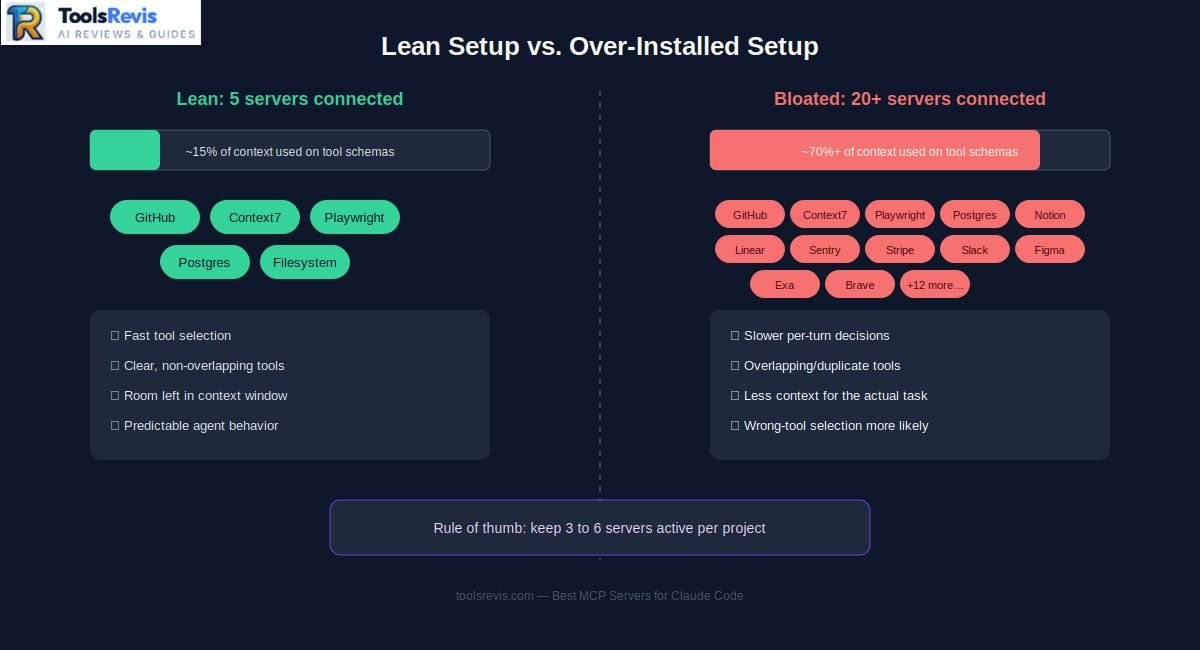
A server with many tools and detailed parameter descriptions can add significant context overhead, especially when several servers are connected at once. Stack five or six such servers and you’re spending a meaningful chunk of your context window on tool definitions the current task may never touch.
The cost isn’t only token count. With more tools available, Claude also has to choose between more options on every turn — including tools with similar-sounding names or overlapping capability (two different “search” tools, for instance, or both a GitHub MCP and a generic web-fetch tool that could each grab the same file). That wider decision space is where agents start picking the wrong tool, or hesitating between two reasonable ones, in ways that don’t happen when the toolset is small and unambiguous.
The practical fix is to treat your MCP setup like a toolbox you pack for a specific job, not a permanent installation:
- Run claude mcp list regularly to see exactly what’s connected in the current project, since it’s easy to forget what you added weeks ago.
- Scope servers to the project that needs them using –scope project or the default local scope, rather than adding everything at –scope user where it follows you into unrelated work.
- Remove servers you’re not actively using with claude mcp remove <name> instead of leaving them connected “just in case.”
- For most workflows, start with around three to six focused servers and add more only when a specific task requires them.
If you genuinely need more than that — say, a project touching several external services at once — consider toggling servers on and off per task rather than running your full catalog simultaneously.
Security & Permission Checklist for MCP Integration
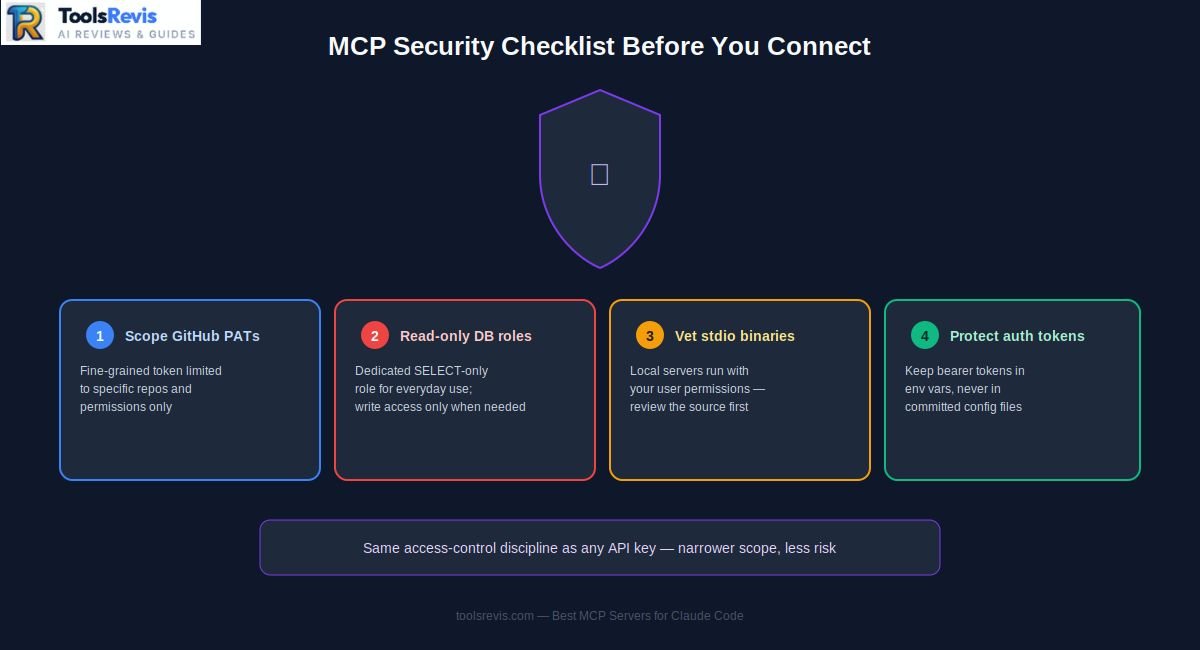
MCP servers act on your behalf with whatever credentials you give them, which means the security question isn’t whether to grant access — it’s how narrowly. A few rules worth following before you connect anything that can read or write real data:
If you want to restrict specific files or directories from being read by Claude, check out our guide on whether .claudeignore exists and how to exclude files in Claude Code.
- Scope GitHub Personal Access Tokens (PATs) tightly. Don’t hand the GitHub MCP a token with full account access when it only needs to work inside one or two repositories. Generate a fine-grained PAT limited to the specific repos and permissions (issues, pull requests, contents) the task actually requires, and rotate it if you ever suspect it’s been exposed.
- Use read-only database credentials by default. As covered in the Postgres/Supabase section above, a database MCP server connected with a full read-write connection string can execute a destructive query if an agent misreads an instruction. Create a separate database role with SELECT-only permissions for everyday use, and only switch to a write-capable role for the specific session where you need it.
- Avoid running unverified third-party stdio binaries without reviewing the source. Because a stdio MCP server runs as a local process on your machine with whatever permissions your user account has, it isn’t sandboxed the way a hosted HTTP server is. Before running npx -y some-random-package from an unfamiliar GitHub repo, check who maintains it, how recently it’s been updated, and whether the code does anything beyond what it claims to.
- Treat remote HTTP servers’ auth tokens like any other API secret. Don’t paste bearer tokens into shared config files that get committed to a public repo; keep them in environment variables or a local, gitignored config instead.
None of this is unique to MCP — it’s the same access-control discipline you’d apply to any tool with API keys or database credentials. The difference is that an AI agent can chain several tool calls together faster than you can review each one, so narrow scoping matters more here than it would for a script you’re running and watching line by line.
Frequently Asked Questions (FAQs)
Are MCP servers free to use with Claude Code?
The MCP protocol itself is open, but individual MCP servers can have different licenses, hosting models, API limits, and pricing. Some are open-source and free to run, while hosted services may require an account, API key, or paid usage. What can cost money is what’s on the other end: search services such as Exa or Brave may require their own API credentials and can have usage limits or paid plans depending on the service and current account tier, and a hosted database counts against whatever plan you’re already paying for with that provider.
How do I remove or disable an MCP server in Claude Code?
Run claude mcp remove <server-name> from the terminal. Use claude mcp list first if you’re not sure of the exact name you gave it when adding it.
Can I use Claude Code MCP servers with Cursor, Codex, or Windsurf?
Yes. Because MCP is an open standard rather than a Claude-specific feature, the same server — Context7 or the GitHub MCP, for example — works across any compatible client with only minor configuration differences. That’s part of what makes it worth learning once rather than per-editor; you can easily check multi-editor MCP compatibility across Cursor and Windsurf or when exploring AI coding assistants like Cursor and Codex.
What is the difference between a Claude Code Skill and an MCP Server?
A Skill (or plugin) is a local, prompt- and script-level extension — instructions, reusable commands, or bundled scripts that live inside Claude Code’s own configuration. An MCP server is a protocol-level connection to something external: a database, an API, a browser. Skills shape how Claude approaches a task; MCP servers give it access to systems it couldn’t otherwise reach.
Conclusion & Next Steps
If you’re setting up Claude Code MCP integration for the first time, the fastest path to real value is the smallest one: install Context7 for accurate library docs and the GitHub MCP for repo operations, get comfortable with claude mcp list and claude mcp remove, and add servers one at a time as a specific task actually calls for them. Resist the urge to install a long catalog on day one — it’s the single most common way people end up with a slower, less reliable agent instead of a more capable one.
Once your MCP setup is dialed in, the same due-diligence approach — checking what a tool actually does before adding it — applies to picking the rest of your AI development stack. For a broader look at what else is worth adding, see our curated guide to the best AI developer tools.

I’m Umair Ahmad, founder of ToolsRevis. I personally test every AI tool we cover — signing up, running real workflows, checking pricing tiers, and comparing outputs — before writing a single word. My goal: cut through AI marketing hype with honest, hands-on verdicts.
Let’s achieve more together!