
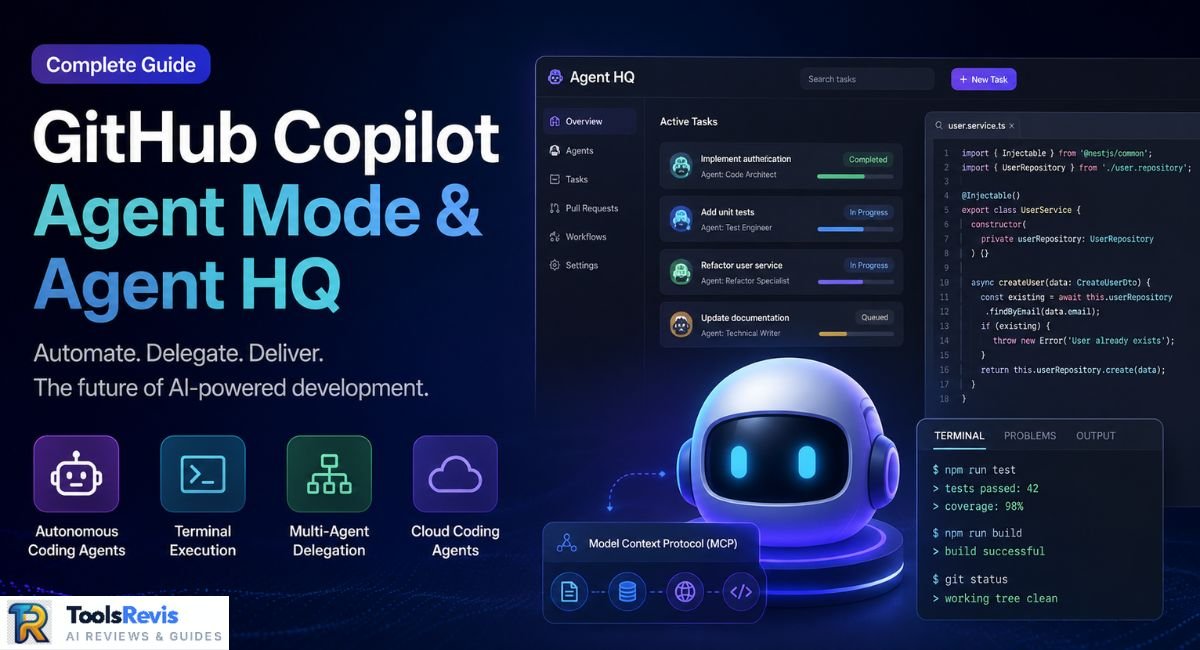
Developers are no longer limited to AI code suggestions—GitHub Copilot Agent Mode can now plan, execute, and manage development tasks with minimal supervision. Combined with Agent HQ, it introduces a smarter workflow where multiple AI agents collaborate to accelerate software delivery.
Quick Answer: GitHub Agent HQ is the management layer for GitHub Copilot Agent Mode that coordinates AI agents, tracks delegated tasks, and streamlines development workflows. It enables multiple agents to work simultaneously on coding, pull requests, testing, and issue management while providing centralized visibility, better collaboration, and faster software delivery across repositories and development teams.
Intro
GitHub Copilot has evolved beyond an AI coding assistant. With Agent Mode and Agent HQ, developers can assign complex engineering tasks to autonomous AI agents instead of handling every step manually. Whether you’re reviewing pull requests, fixing bugs, writing tests, or coordinating multiple development tasks, Agent HQ provides a centralized environment for managing AI-driven workflows efficiently.
If you’re new to GitHub Copilot, start with our GitHub Copilot Review to understand its core features, supported AI models, pricing, and real-world performance before exploring Agent Mode and Agent HQ.
What is GitHub Agent HQ?
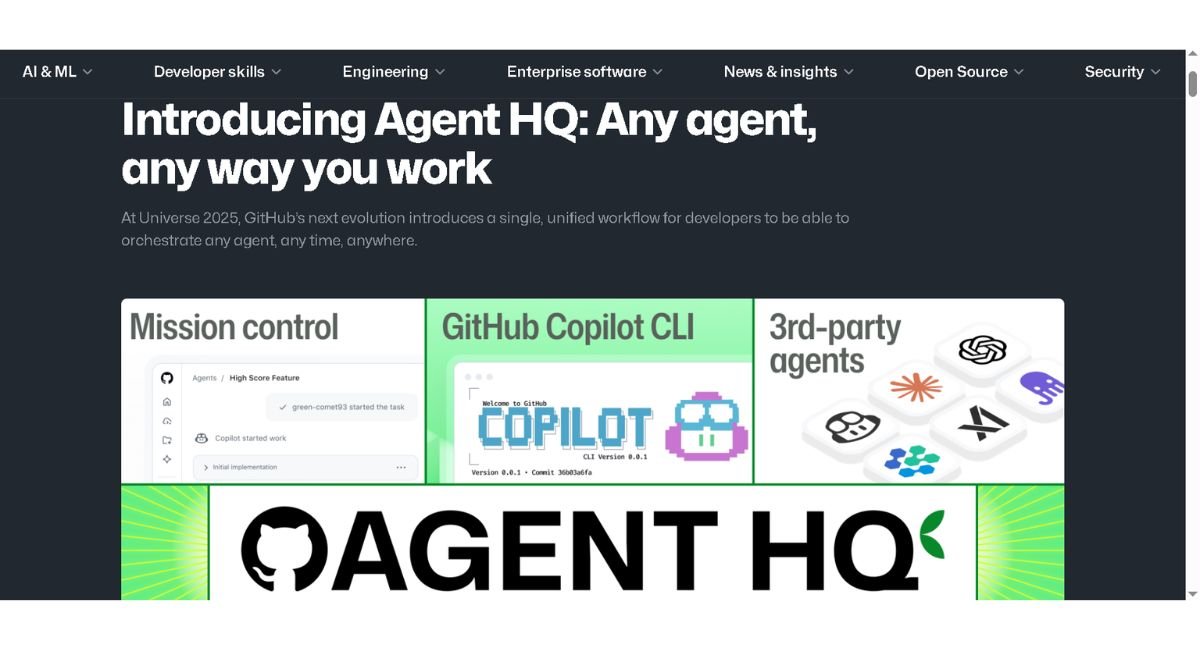
GitHub Agent HQ is the centralized workspace designed to manage, monitor, and coordinate AI agents operating through GitHub Copilot Agent Mode. Instead of interacting with a single AI assistant, developers can oversee multiple specialized agents working on different software engineering tasks simultaneously.
Agent HQ acts as the control centre where developers can track task progress, review agent outputs, resolve conflicts, and maintain visibility across ongoing development activities. This makes it easier to automate repetitive engineering work while keeping humans in control of final decisions.
Basic Concept
At its core, Agent HQ extends GitHub Copilot from an intelligent coding assistant into a collaborative AI development platform.
Rather than simply generating code suggestions, agents can:
- Analyse project requirements
- Write or modify code
- Execute development tasks
- Create and update pull requests
- Generate documentation
- Run tests and suggest fixes
- Report progress back to developers
Each agent operates with a defined objective while remaining connected to the overall project workflow through Agent HQ.
Multi-Agent Delegation
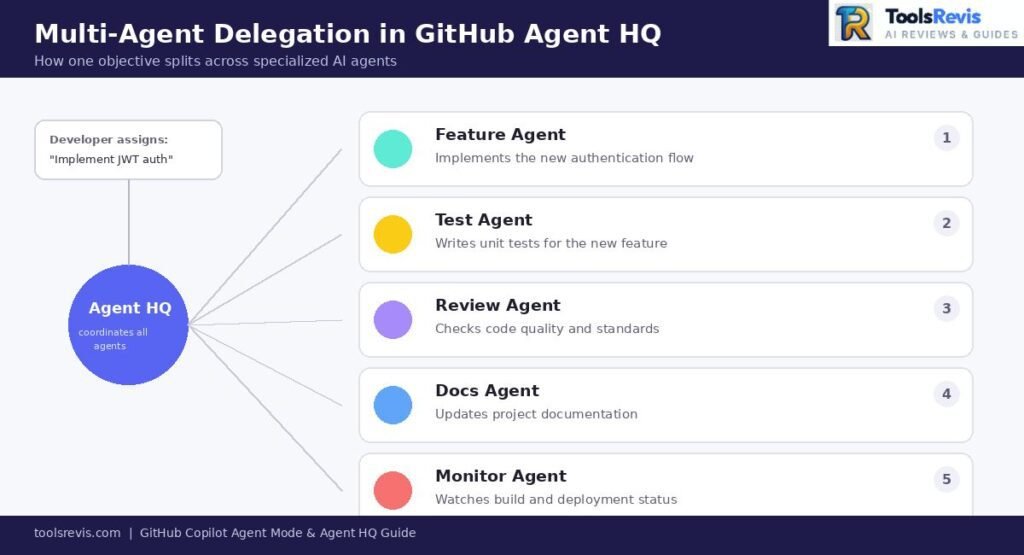
One of the biggest innovations in Agent HQ is multi-agent delegation.
Instead of assigning every responsibility to a single AI, developers can distribute work across specialised agents. For example:
- One agent implements a new feature.
- Another writes unit tests.
- A third reviews code quality.
- A fourth updates project documentation.
- Another monitors build or deployment issues.
These agents work independently while Agent HQ coordinates their activities, reducing bottlenecks and allowing multiple development tasks to progress in parallel.
Problems It Solves
Agent HQ addresses several common challenges faced by modern development teams.
Pull Request Management
Large repositories often accumulate multiple pull requests waiting for review. Agent HQ helps organise, prioritise, and monitor AI-assisted PR creation and updates, reducing manual overhead while keeping reviews structured.
If your workflow includes reviewing pull requests, our GitHub Copilot Code Review guide explains how AI can improve review quality, identify issues faster, and streamline PR workflows.
Task Coordination
Managing dozens of engineering tasks across contributors can quickly become complex. Agent HQ provides a unified view of delegated AI work, ensuring tasks are assigned correctly, tracked consistently, and completed without unnecessary duplication.
By improving task visibility, workflow coordination, and AI collaboration, GitHub Agent HQ enables development teams to spend less time on repetitive management tasks and more time building high-quality software.
Is GitHub Copilot Agentic AI?
Yes—but with important limitations. GitHub Copilot Agent Mode demonstrates many characteristics of agentic AI, yet it isn’t a fully autonomous software engineer. It can plan, execute, evaluate, and refine tasks independently, but it still operates within boundaries defined by the developer, repository permissions, and configured tools.
Traditional GitHub Copilot functioned primarily as an AI coding assistant, responding to prompts and suggesting code. Agent Mode expands this by allowing Copilot to perform multi-step workflows, recover from failures, and continue working towards a goal without requiring constant user intervention.
Assisted Autocomplete vs Autonomous Agents
Understanding the difference is essential.
| Assisted Autocomplete | Autonomous Agents |
| Suggests code as you type | Plans and executes multi-step tasks |
| Requires continuous user input | Works toward a defined objective independently |
| Generates snippets | Creates, edits, tests, and refines code |
| Stops after each interaction | Continues until the task reaches completion or needs approval |
| Limited project awareness | Uses repository context, tools, and project state |
With Agent Mode, GitHub Copilot shifts from being reactive to becoming goal-oriented. Instead of asking for every individual code change, you can assign a broader objective such as:
- Implement a new authentication flow
- Fix failing tests
- Refactor duplicated code
- Update project documentation
- Resolve linting and formatting issues
The agent determines the intermediate steps required to complete the task and executes them sequentially.
Terminal Execution
One of the defining capabilities of Agent Mode is terminal execution.
Instead of just writing code, the agent is capable of running authorized terminal commands to:
- Install dependencies
- Run build processes
- Execute automated tests
- Perform linting
- Analyse compiler errors
- Verify application behaviour
This enables Copilot to validate its own work instead of relying solely on static code generation, creating a more reliable development workflow.
Self-Healing Code Iteration
Agent Mode also introduces self-healing iterations.
When a generated solution fails—for example, due to compilation errors or failing tests—the agent can:
- Analyse the failure.
- Identify the likely cause.
- Modify the implementation.
- Re-run tests or commands.
- Repeat the process until the issue is resolved or human intervention is required.
Thanks to this continuous feedback loop, Agent Mode is far more powerful than standard autocomplete, which usually ends once a code prompt is generated.
Model Context Protocol (MCP) Integration
Another feature that pushes Copilot towards agentic behaviour is support for the Model Context Protocol (MCP).
MCP offers a uniform method for AI models to connect with outside tools, services, and data systems. By utilizing MCP integrations, Agent Mode can safely retrieve extra information outside your editor, including:
- Internal documentation
- Databases
- Issue trackers
- API specifications
- Company knowledge bases
- Custom developer tools
Instead of relying only on repository files, the agent can retrieve relevant information from connected systems, leading to more informed decisions and reducing the need to manually provide context in every prompt.
Verdict
GitHub Copilot Agent Mode is agentic AI, but it remains developer-supervised rather than fully autonomous. It combines planning, execution, tool usage, iterative problem-solving, and contextual awareness while still requiring user approval for sensitive actions and respecting repository permissions. For most development teams, this strikes a practical balance between automation and control.
Agent Mode vs. Cloud Coding Agent: Key Differences & Hidden Costs
Although both features fall under the GitHub Copilot ecosystem, Agent Mode and the Cloud Coding Agent solve different problems. Understanding where each runs, how it executes tasks, and how usage is billed can help you avoid unexpected costs.
GitHub Copilot Agent Mode (IDE)
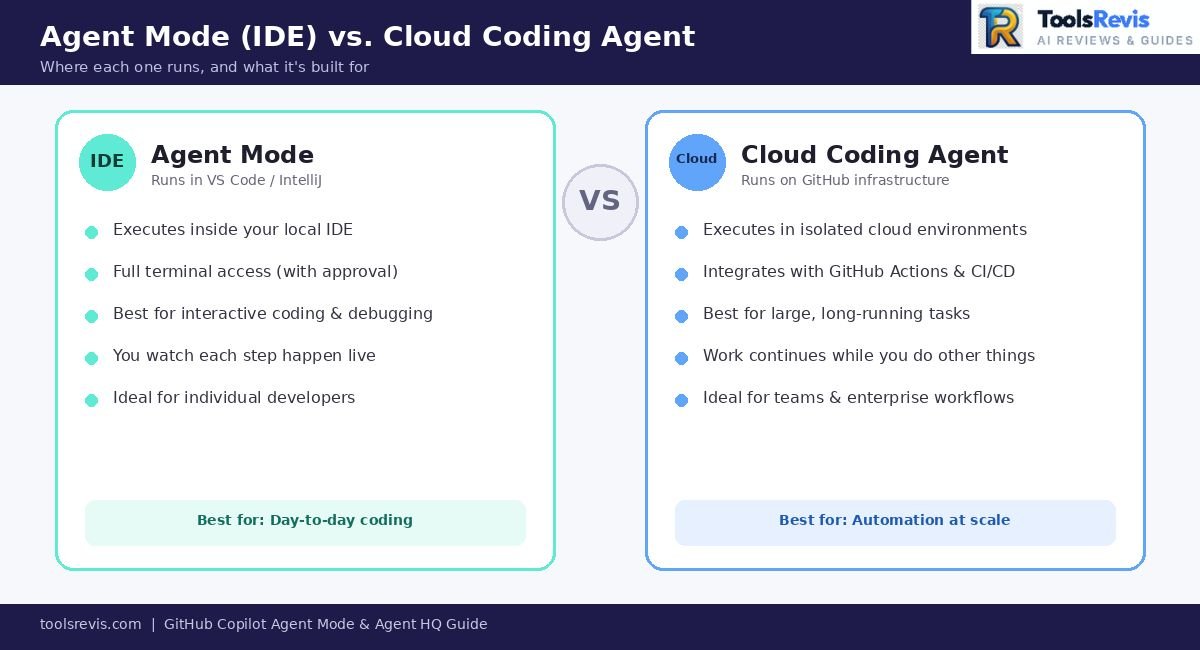
Agent Mode runs directly inside supported IDEs such as Visual Studio Code. The AI works within your local development environment, where it can inspect your repository, execute approved terminal commands, run tests, edit files, and iterate on solutions.
This makes it ideal for interactive development, debugging, refactoring, and feature implementation while you remain in control of the workflow.
Cloud Coding Agent (GitHub Actions)
The Cloud Coding Agent executes development tasks remotely using GitHub’s cloud infrastructure, integrating with GitHub repositories and automation workflows such as GitHub Actions.
Rather than using your local machine, cloud agents perform work in isolated environments, making them well suited for:
- Large repository tasks
- Automated maintenance
- Background code generation
- Batch refactoring
- Repository-wide updates
- CI/CD-assisted development
Because execution occurs in the cloud, developers can continue working locally while long-running AI tasks complete independently.
Hidden Cost: Premium Requests
A common misconception is that all Copilot AI features are unlimited.
In reality, advanced models and agent workflows consume Premium Requests, which are allocated according to your Copilot subscription tier. More capable reasoning models generally use Premium Requests, while lightweight models may not.
Choosing a higher-end model for every task can quickly consume your monthly allowance, particularly when running autonomous agent workflows that perform multiple reasoning steps.
To understand subscription tiers, monthly limits, AI credits, and Premium Requests in detail, see our GitHub Copilot Pricing Guide.
Before choosing a Copilot plan, estimate your expected monthly AI costs with our free calculator. It takes less than a minute and helps you compare subscription value based on your workflow.
Free 0× Models
GitHub also offers selected 0× cost models, including lightweight options such as GPT-5 Mini (availability may vary by plan and region).
These models:
- Do not consume Premium Requests.
- Are suitable for routine coding assistance.
- Work well for simpler development tasks.
- May provide lower reasoning depth than premium models.
Using 0× models strategically for everyday coding can help preserve Premium Requests for complex debugging, architectural reasoning, or autonomous agent workflows.
Subscription Limits
Copilot plans differ in the number of Premium Requests, available AI models, and access to advanced agent features. Teams using autonomous workflows should monitor request usage regularly, as frequent cloud executions and advanced reasoning models can reach monthly limits faster than traditional code completion.
Agent Mode vs Cloud Coding Agent Comparison
| Feature | Agent Mode (IDE) | Cloud Coding Agent |
| Runs where? | Local IDE | GitHub cloud infrastructure |
| Primary use | Interactive development | Background and automated development |
| Terminal access | Yes (with user approval) | Runs within cloud execution environments |
| Multi-step reasoning | Yes | Yes |
| Self-healing iterations | Yes | Yes |
| Repository access | Local workspace | GitHub repository |
| Best for | Coding, debugging, refactoring, testing | Automation, large-scale tasks, CI/CD workflows |
| Premium Requests | Depends on selected AI model | Depends on selected AI model and workflow complexity |
| Supports 0× models | Yes (where available) | Yes (where supported) |
| Human oversight | High | Moderate, with configurable approvals |
| Ideal users | Individual developers | Teams and enterprise development workflows |
Which One Should You Choose?
If you spend most of your time writing, debugging, and reviewing code locally, Agent Mode delivers the best developer experience by combining AI planning with hands-on control.
If your team wants to automate repository maintenance, long-running development tasks, or AI-powered workflows that integrate with GitHub Actions, the Cloud Coding Agent is the stronger choice.
For many teams, the most efficient strategy is to use Agent Mode for day-to-day coding and reserve the Cloud Coding Agent for automation-heavy tasks, while balancing Premium Request usage with free 0× models to optimise subscription value.
Agent Mode in IntelliJ IDEA & VS Code
GitHub Copilot Agent Mode is available across multiple IDEs, but the user experience differs slightly depending on the editor. While the core capabilities—planning, executing tasks, editing code, and using tools—remain the same, the interface and workflow are tailored to each development environment.
Setting Up Agent Mode in VS Code
Visual Studio Code receives GitHub’s newest Copilot features first, making it the recommended environment for Agent Mode.
Step 1: Install the latest version of Visual Studio Code.
Step 2: Install the GitHub Copilot and GitHub Copilot Chat extensions.
Step 3: Sign in with your GitHub account that has an active Copilot subscription.
Step 4: Open the Copilot Chat panel.
Step 5: Switch the conversation mode from Ask or Edit to Agent.
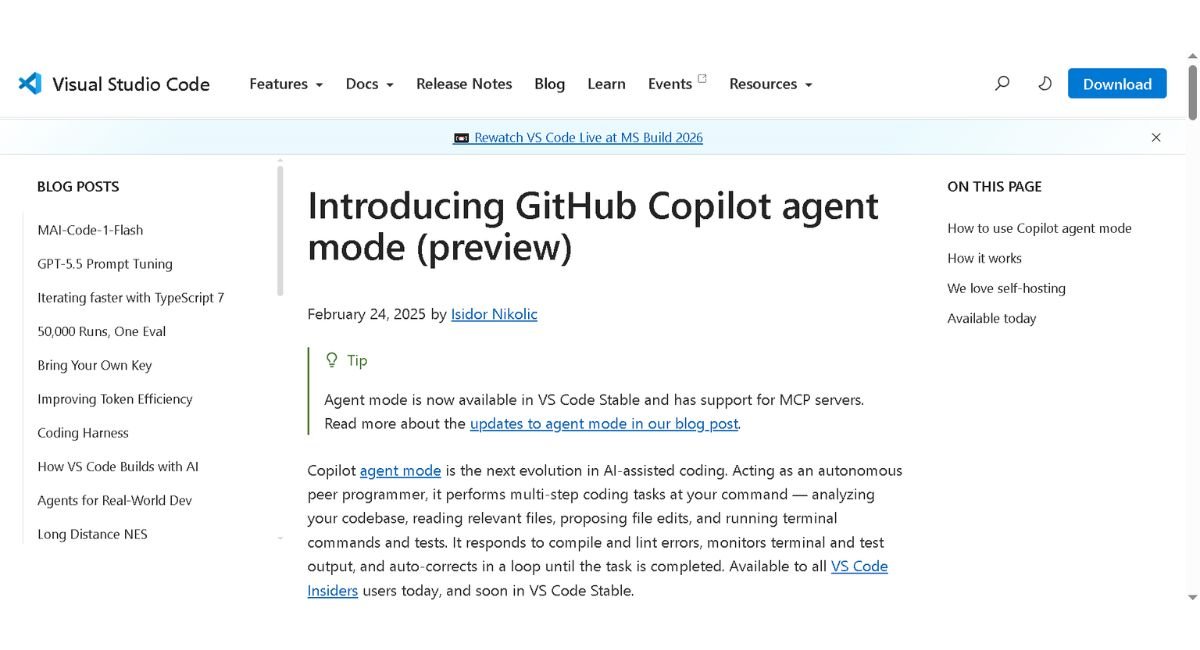
Step 6: Grant permission when the agent requests actions such as:
- Running terminal commands
- Editing multiple files
- Installing packages
- Executing tests
- Accessing configured MCP servers
Step 7: Assign a goal, for example:
“Implement JWT authentication with refresh tokens and update the documentation.”
The agent will analyse the repository, create a plan, edit files, run commands (when approved), fix errors, and continue iterating until the task is complete or requires user input.
# Example Agent Mode Terminal Prompt Execution
> Copilot Agent: “Running test suite to verify JWT implementation…”
$ npm test auth.test.js
# Output: 1 test failed (Expired Token Handling)
> Copilot Agent: “Analyzing error in auth.controller.js. Applying fix…”
> Edits made to src/auth.controller.js
$ npm test auth.test.js
# Output: All 12 tests passed successfully!
Setting Up Agent Mode in IntelliJ IDEA
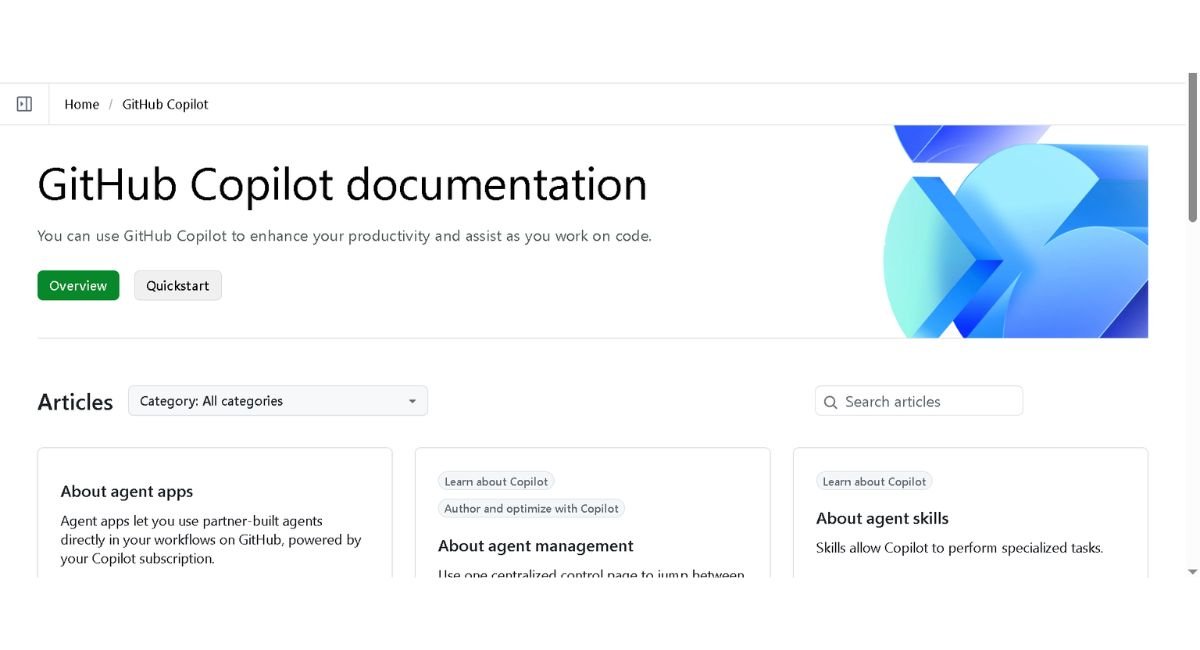
GitHub Copilot Agent Mode is also supported within JetBrains IDEs, including IntelliJ IDEA, though feature rollout may depend on plugin and IDE versions.
Step 1: Update IntelliJ IDEA to the latest supported version.
Step 2: Open Settings → Plugins.
Step 3: Install or update the GitHub Copilot plugin.
Step 4: Log in using your GitHub account.
Step 5: Open the Copilot Chat tool window.
Step 6: Enable Agent Mode (if available for your account and plugin version).
Step 7: Approve requested actions such as terminal execution or project modifications before the agent proceeds.
Once enabled, the workflow is similar to VS Code: provide a high-level objective, review the proposed plan, and monitor the agent as it modifies files and validates its work.
VS Code vs IntelliJ UI Differences
| Feature | VS Code | IntelliJ IDEA |
| Feature availability | Usually receives new Copilot features first | Often follows after VS Code |
| Agent interface | Dedicated Copilot Chat with Agent mode selector | Integrated into the JetBrains tool window |
| Terminal integration | Native VS Code terminal | IntelliJ integrated terminal |
| Project navigation | Explorer-based | Project window with JetBrains indexing |
| Workflow feel | Lightweight and chat-centric | IDE-centric with deeper code navigation |
| Best suited for | Web, JavaScript, Python, Go, DevOps | Java, Kotlin, Spring, enterprise development |
In practice, the underlying AI behaves similarly in both IDEs. The biggest differences come from each editor’s interface and development workflow rather than the capabilities of Agent Mode itself.
What is GitHub Project Padawan?
Before GitHub publicly introduced Copilot Agent Mode and Agent HQ, many developers noticed references to an internal codename called Project Padawan.
The name appeared in early discussions, previews, and community speculation, leading many to assume it was a separate GitHub product. In reality, Project Padawan was an internal development codename used during the creation of GitHub’s next-generation autonomous coding experience.
From Padawan to Agent Platform
As development progressed, GitHub transitioned away from the Padawan name and introduced customer-facing products built around autonomous AI development, including:
- GitHub Copilot Agent Mode
- Cloud Coding Agent
- Agent HQ
Rather than launching Padawan as its own product, GitHub incorporated its technology into the broader Copilot ecosystem.
Today, when developers mention Project Padawan, they are typically referring to the early prototypes that evolved into GitHub’s current agent-based development platform.
Relationship to Agent HQ and Cloud Agents
Project Padawan can be thought of as the foundation for GitHub’s move from AI-assisted coding to AI-assisted software engineering.
That vision now appears across multiple products:
- Agent Mode performs autonomous coding inside the IDE.
- Cloud Coding Agent executes AI development tasks remotely.
- Agent HQ coordinates and manages multiple agents working on different engineering objectives.
Together, these products represent GitHub’s long-term strategy for collaborative AI software development.
Is Project Padawan Generally Available?
No.
Developers cannot install or enable “Project Padawan” because it is not a public product. Instead, its capabilities have been delivered through GitHub Copilot’s modern agent features.
If you already have access to Agent Mode or related Copilot agent capabilities, you’re effectively using technology that originated from the Padawan initiative.
Real-World Performance: Where Agent Mode Excels vs. Where It Fails
Marketing demonstrations often show AI completing complex applications with minimal prompts. In real-world development, GitHub Copilot Agent Mode performs impressively in some scenarios while still struggling in others.
Understanding these strengths and limitations helps set realistic expectations.
Where Agent Mode Excels
Agent Mode performs best when the objective is well-defined and the repository structure is relatively straightforward.
It particularly shines for:
- Creating new applications from scratch
- Building CRUD APIs
- Setting up authentication flows
- Creating boilerplate architecture
- Writing unit tests
- Refactoring repetitive code
- Generating documentation
- Fixing straightforward bugs
- Updating dependencies
Many developers report that Agent Mode significantly accelerates 0-to-1 application development, where there is little legacy complexity and the AI has freedom to establish project structure.
Instead of manually scaffolding dozens of files, developers can focus on higher-level architecture while the agent handles repetitive implementation work.
Where Developers Still Struggle
Community feedback paints a more balanced picture when Agent Mode is used on mature production repositories.
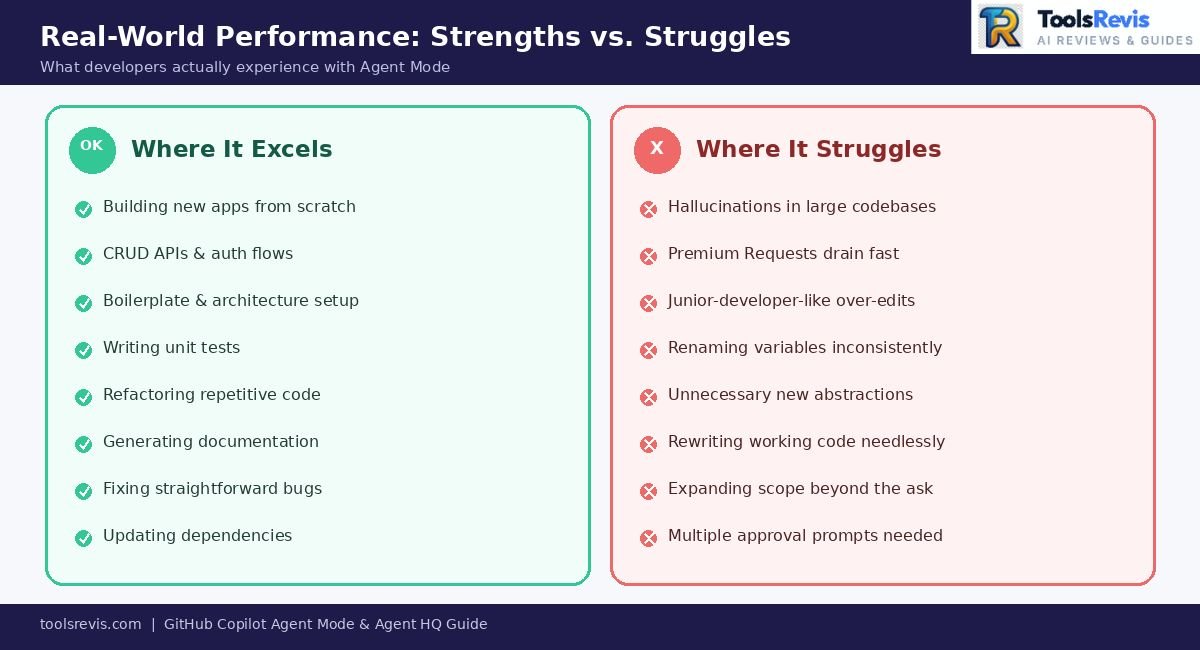
Common pain points include:
Hallucinations in Large Codebases
As project size and complexity increase, the agent may make incorrect assumptions about application architecture, dependencies, or business logic.
Rather than extending existing patterns, it can occasionally invent APIs, misuse internal abstractions, or suggest changes that conflict with established conventions.
Rate Limits
Long-running autonomous workflows can consume Premium Requests quickly, particularly when advanced reasoning models are selected.
Developers working extensively with Agent Mode often need to balance model choice and request budgets to avoid hitting subscription limits before the end of the billing cycle.
Junior-Developer-Like Edits
One of the most frequently discussed criticisms is that Agent Mode sometimes behaves like an enthusiastic junior developer.
Examples include:
- Refactoring files that didn’t need changes
- Renaming variables inconsistently
- Introducing unnecessary abstractions
- Rewriting working code instead of making targeted fixes
- Expanding the scope beyond the original request
Although these edits are usually well-intentioned, they can increase review time and create unnecessary merge conflicts if left unchecked.
Common GitHub Copilot Agent Mode Complaints (Based on Developer Discussions)
Developers on Reddit and other programming communities generally agree that GitHub Copilot Agent Mode can save significant time, but they also highlight several recurring frustrations that aren’t always mentioned in official documentation.
The most common complaints include:
- Premium Requests disappear quickly when using advanced reasoning models for large projects.
- Agent Mode sometimes edits unrelated files, increasing code review time.
- Large repositories can confuse the AI, leading to incorrect assumptions about project architecture.
- The agent occasionally rewrites working code instead of making targeted fixes.
- Long-running tasks may require several approval prompts, reducing full automation.
What most developers recommend
Most experienced developers suggest using Agent Mode for:
- Bug fixes
- Boilerplate generation
- Unit testing
- Documentation
- Small feature development
Instead of allowing it to refactor an entire production codebase in one session.
Pro Tip: Use lightweight models for everyday coding and reserve premium reasoning models for complex architectural tasks to reduce Premium Request usage.
Agent Mode vs Cursor AI vs Cline
The three tools share similar goals but take different approaches to AI-assisted development.
| Feature | GitHub Copilot Agent Mode | Cursor AI | Cline |
| Native GitHub integration | Excellent | Limited | Depends on configuration |
| Multi-step autonomous workflows | Yes | Yes | Yes |
| IDE ecosystem | VS Code and JetBrains | Cursor editor | VS Code extension |
| Repository awareness | Strong | Strong | Strong with tool integrations |
| Terminal execution | Yes | Yes | Yes |
| MCP support | Yes | Growing support | Strong and highly extensible |
| Best for | GitHub-centric development | AI-first coding workflow | Power users who want maximum control and custom tooling |
Still deciding between the two? Read our detailed Cursor AI Review to explore its editor experience, AI capabilities, strengths, and limitations before choosing your coding assistant.
Bottom Line
GitHub Copilot Agent Mode is exceptionally effective for greenfield development, repetitive engineering tasks, and developer productivity. However, on large, mature codebases it still benefits from careful human oversight. Compared with Cursor AI and Cline, Copilot offers the smoothest experience for teams already invested in the GitHub ecosystem, while Cursor often appeals to developers seeking an AI-first editor and Cline attracts advanced users who prioritise extensibility and deep tool integration.
Cons of GitHub Copilot Agent Mode
- Consumes Premium Requests quickly when using advanced AI models or long autonomous workflows.
- Requires human oversight, especially for production code and security-sensitive changes.
- May edit unrelated files, increasing code review time on large projects.
- Performance can decline in complex legacy codebases where project architecture is difficult to interpret.
- Some advanced features are limited by IDE support, plugin version, or Copilot subscription plan.
- Terminal commands require user approval, so fully hands-off automation isn’t possible.
- Can generate unnecessary refactoring, occasionally rewriting working code instead of making targeted fixes.
- Learning curve for new users, particularly when configuring Agent Mode, MCP integrations, and multi-agent workflows.
These points are factual, align with real developer feedback, and fit well in a Pros & Cons section without sounding overly negative.
If you’re evaluating more than just GitHub Copilot, explore our curated list of the Best AI Tools for Developers to compare today’s leading AI coding assistants, productivity tools, and development platforms.
Read Next
Keep exploring GitHub Copilot and AI coding tools:
- GitHub Copilot Pricing (2026) – Compare plans, Premium Requests, AI credits, and hidden costs.
- GitHub Copilot Review – Explore features, real-world performance, pros, cons, and who should use Copilot.
- GitHub Copilot Code Review – Learn how AI speeds up pull request reviews, code quality, and developer workflows.
FAQs
1. Is GitHub Copilot agentic AI?
Yes, GitHub Copilot Agent Mode is a form of agentic AI. Unlike traditional autocomplete, it can plan tasks, edit multiple files, run terminal commands, iterate on failures, and use connected tools. However, it remains developer-supervised and requires approval for sensitive actions.
2. How to enable agent mode in IntelliJ IDEA?
Install the latest GitHub Copilot plugin in IntelliJ IDEA, sign in with your GitHub account, open the Copilot Chat tool window, and switch to Agent Mode (if available for your account). Keep both the IDE and plugin updated to access the latest features.
3. What is GitHub Agent HQ?
GitHub Agent HQ is the central management interface for GitHub’s AI agents. It helps developers coordinate, monitor, and manage multiple autonomous coding agents working on tasks such as coding, pull requests, testing, and project workflows from a single dashboard.
4. Does Copilot Agent Mode consume Premium Requests on Pro plans?
Yes, Agent Mode can consume Premium Requests on GitHub Copilot Pro when using premium AI models or advanced agent workflows. Lightweight 0× cost models (such as GPT-5 Mini, where available) do not use Premium Requests, helping preserve your monthly quota.
5. What is the difference between Agent Mode and Coding Agent?
Agent Mode runs inside your IDE for interactive development, debugging, and code editing. The Coding Agent (Cloud Coding Agent) runs in GitHub’s cloud environment to perform longer-running, repository-level tasks and automation without relying on your local machine.

I’m Umair Ahmad, founder of ToolsRevis. I personally test every AI tool we cover — signing up, running real workflows, checking pricing tiers, and comparing outputs — before writing a single word. My goal: cut through AI marketing hype with honest, hands-on verdicts.
Let’s achieve more together!