

Claude Cowork is useful when a task involves more than answering a question and you want Claude to work through files, context, and multiple steps.
The key is knowing when to delegate the work, what access to provide, and where you still need to review Claude’s results.
Introduction
If you are trying to figure out how to use Claude Cowork, the biggest shift is understanding that Cowork is not simply another chat mode. It is designed for handing Claude a larger, multi-step task and letting it work through the relevant context while you monitor and guide the process.
That makes Cowork particularly useful for developers working with project documentation, research materials, files, specifications, notes, and other work surrounding a software project. It can also handle broader knowledge-work tasks where organizing information or producing a finished deliverable requires several steps.
This guide starts with what Cowork actually is, then moves into how it works, how to set it up, practical developer workflows, examples, use cases, Cowork vs. Claude Code, plans and limitations, and best practices.
What Is Claude Cowork?
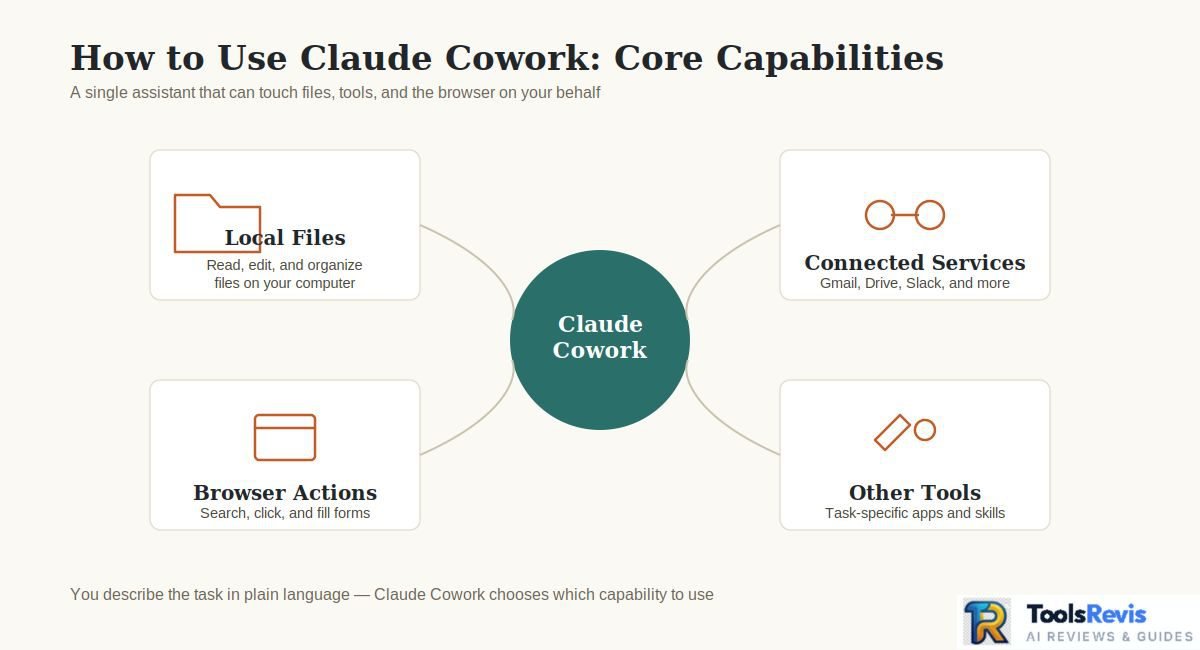
Claude Cowork is a workspace-oriented mode that lets Claude handle multi-step tasks using selected files, workspace context, and supported tools or connections, while you review its approach and steer the work. Anthropic describes Cowork as a way to delegate complex tasks without requiring you to work through a terminal.
Instead of treating Claude as a question-and-answer interface, Cowork lets you define an outcome and give Claude the context needed to work toward it. Depending on the task and surface, Claude can work with local files, connected services, browser capabilities, and other supported tools.
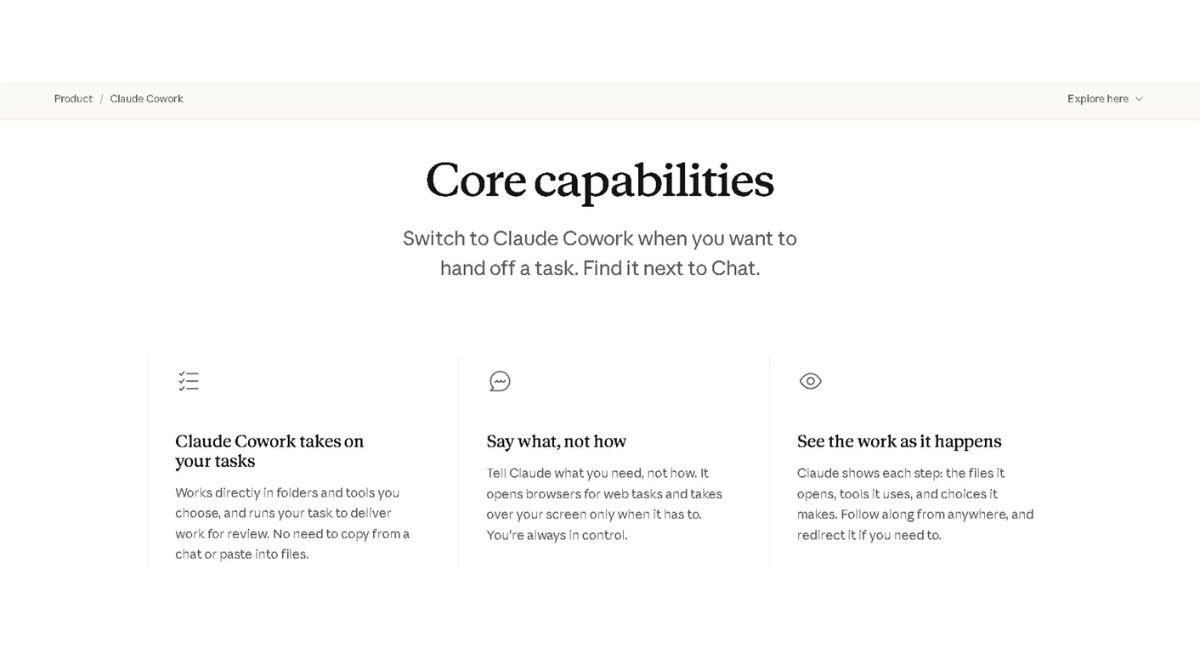
What’s included in Claude Cowork
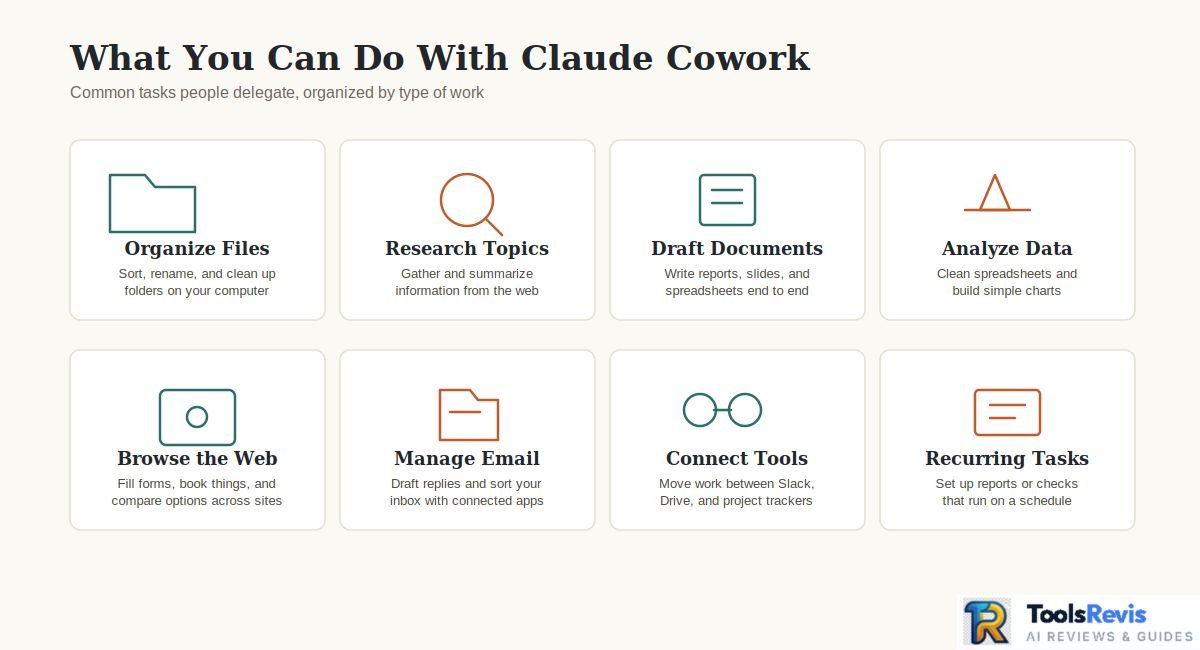
Cowork is not a single feature — it bundles several capabilities that together make delegation possible:
Dedicated workspaces that store relevant files, links, custom instructions, and contextual memory for each project. Available wherever you use Cowork, but Projects tied to a local folder only support desktop sessions.
Skills — reusable instruction sets for tasks you repeat in a consistent format.
Plugins — bundles of tools and commands. On Team and Enterprise, admins control which plugins are auto-installed, self-service, or hidden.
Connectors — links to external services, with per-tool approval controls.
Automated tasks and background dispatch — processes executed on a fixed timer or offloaded to run asynchronously.
Integrated web browsing — Web access is supported either via the built-in Claude Desktop viewer or through the extension in your local Chrome browser. Administrative controls allow turning either option on, off, or both.
Cloud sessions vs local sessions — during the beta, Cowork tasks can run on Anthropic’s infrastructure (so work continues across desktop, web and mobile, and scheduled tasks run even with your laptop closed) or locally on your machine inside an isolated VM.
Cowork vs. regular Claude Chat
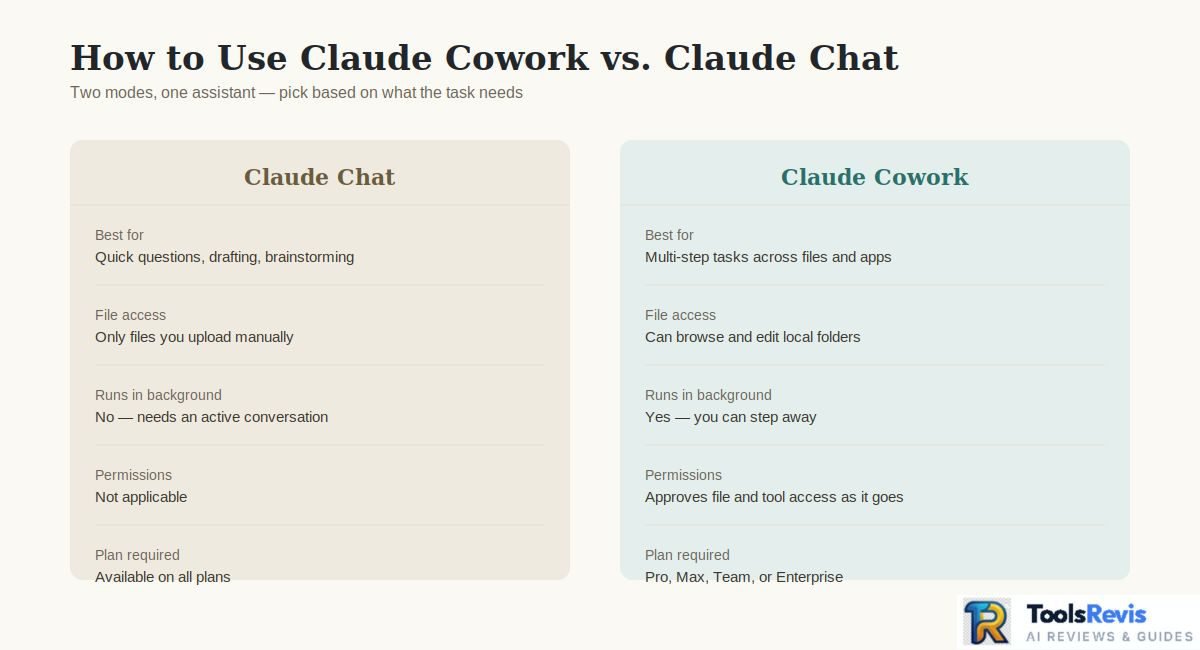
The simplest distinction is conversation versus delegated work.
| Claude Chat | Claude Cowork |
| Best for questions, explanations, brainstorming, and conversational tasks | Ideal for complex, multi-stage workflows involving extensive file analysis and context processing. |
| You typically drive each step through the conversation | You can hand Claude an outcome and let it work through multiple steps |
| Usually focused on producing an answer in the conversation | Can produce or modify practical deliverables depending on the task |
| Less need for workspace-level access | Can use selected files, workspaces, connectors, or other supported capabilities |
Cowork does not mean Claude should operate without supervision. Anthropic’s current workflow emphasizes reviewing Claude’s approach, monitoring progress, and steering the task when necessary. Cowork can also coordinate multiple workstreams for complex tasks, but the exact behavior depends on the task and available capabilities.
What does Claude Cowork do?
Claude Cowork can handle tasks such as organizing files, synthesizing research, analyzing documentation, creating documents or spreadsheets, preparing project materials, and working with information spread across multiple sources. Anthropic also supports local file access and connected tools on supported desktop workflows.
For example, instead of asking Claude:
“Summarize these project notes.”
you could give Cowork a project folder and ask it to:
- Review the available documentation.
- Identify the project’s goals and major decisions.
- Consolidate conflicting information.
- Create a structured technical brief.
- Highlight unresolved questions and risks.
- Produce the final document for your review.
That difference is important. The value of Cowork comes from delegating a workflow, not simply sending a longer prompt.
Who should use Claude Cowork?
Cowork is most useful when the work has multiple steps, meaningful context, and a concrete deliverable.
For developers, good examples include organizing project documentation, synthesizing specifications, reviewing several project files, preparing onboarding material, or turning scattered notes into a technical brief. For general knowledge work, research synthesis, document creation, file organization, and similar tasks are strong fits.
However, Cowork should not automatically replace Claude Code for software-engineering tasks. If the job depends heavily on terminal commands, code execution, repository changes, debugging, or an engineering workflow, Claude Code is generally the more appropriate Claude product.
A useful mental model is:
Goal → Context → Claude’s approach → Approval/permissions → Execution → Review → Steering
That keeps Cowork’s agentic workflow useful without treating its first result as automatically correct.
How Does Claude Cowork Work?
Claude Cowork works by turning a defined outcome into a multi-step workflow: you provide the goal and relevant context, review Claude’s approach and requested permissions, let it perform the work, then inspect and refine the result. The exact tools and actions available depend on the task, connected services, and Claude surface.
The Cowork task loop
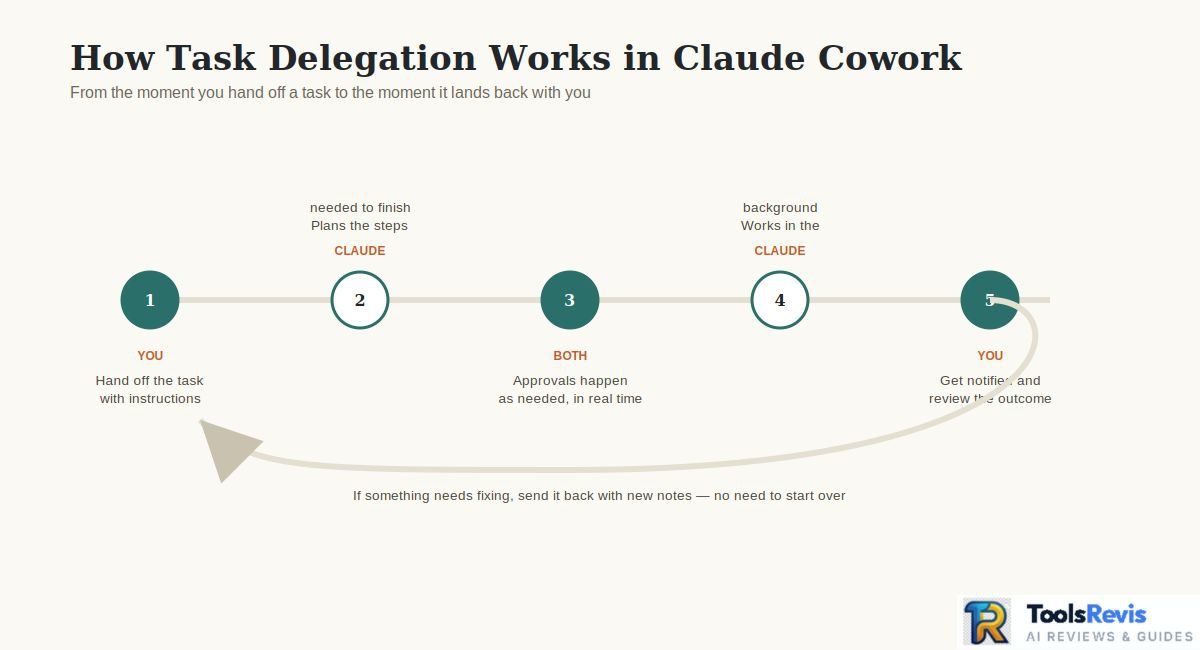
A practical Cowork workflow looks like this:
- Define the outcome — Tell Claude what you actually want completed, not just the general topic.
- Provide context — Give it the relevant files, folders, project information, or connected resources.
- Review the approach — Check Claude’s proposed direction before allowing consequential actions.
- Let Claude work — Cowork can carry out multiple steps instead of requiring you to prompt after every individual action.
- Steer when necessary — If Claude takes the wrong direction, provide additional instructions or change the scope.
- Verify the deliverable — Check important facts, files, calculations, references, and other outputs before using them.
This is what makes using Claude Cowork different from a normal back-and-forth chat. You are managing a task rather than manually orchestrating every step.
How does Claude Cowork handle complex tasks?
For larger tasks, Claude may break the work into multiple operations and use available tools or supporting capabilities along the way. Anthropic’s Cowork documentation describes workflows where Claude can work across files and use supported capabilities to complete delegated tasks.
That does not mean every Cowork task follows the same sequence or uses the same tools. A simple request to summarize several documents may require very little orchestration, while a project involving many files and a final deliverable can involve substantially more work.
The important distinction is that you specify the destination while Claude handles much of the intermediate work.
A simple example
Suppose you have a folder containing:
- Project requirements
- Meeting notes
- Existing documentation
- A changelog
- Several Markdown files
Instead of asking separate questions about each file, you could give Cowork a task such as:
Review these project materials and create a concise developer brief covering the project purpose, current architecture, major decisions, unresolved issues, and recommended next steps. Flag anything that conflicts across the source files.
Claude can then work through the available material, organize the information, produce the brief, and identify areas that require your attention.
You should still review the final document against the original sources, particularly when the output will influence technical or business decisions.
When should you steer Claude?
Steering is useful when the task changes, Claude misunderstands the objective, or you notice that it is spending effort on something outside the intended scope.
For example, if you asked for a technical brief but Claude starts rewriting the project’s documentation, you can redirect it:
Stop rewriting the documentation. Use the existing files only as source material and focus on producing the requested technical brief.
This keeps the workflow controlled without requiring you to restart the entire task.
The best way to think about Cowork is not “give Claude a prompt and walk away,” but “delegate the workflow while retaining oversight.” That approach is especially important when Cowork has permission to access files or perform actions that can affect your workspace.
How to Open and Set Up Claude Cowork
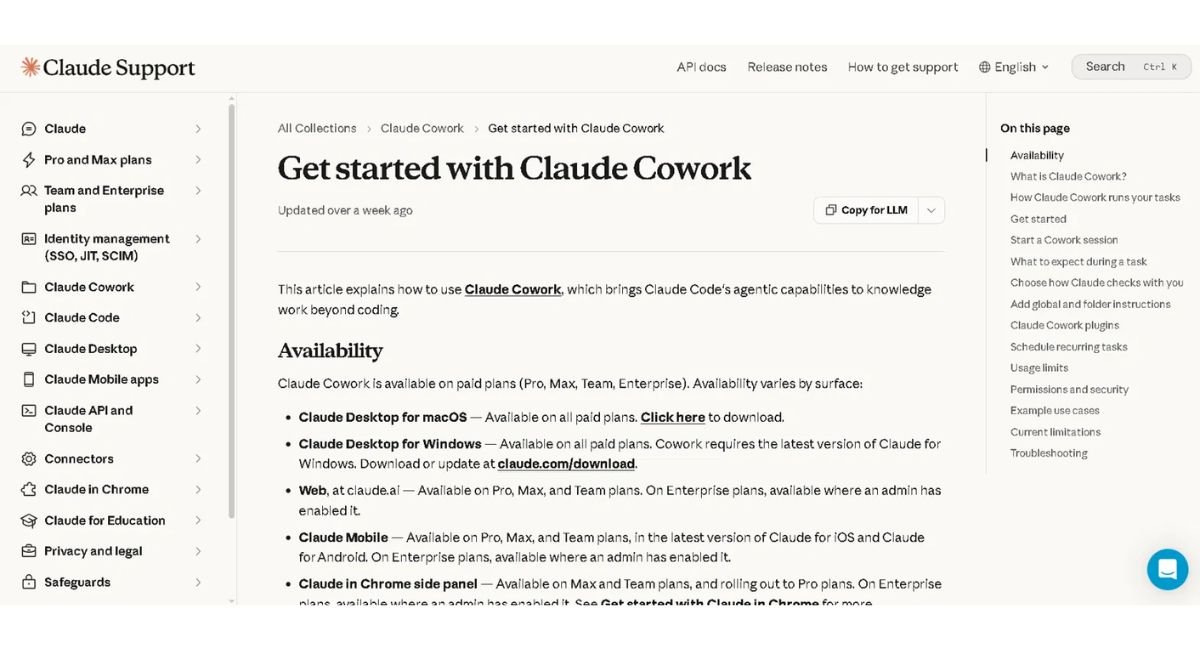
You can open Claude Cowork from the same message box used for Claude Chat by selecting “Cowork.” On supported paid plans, Cowork is available across Claude Desktop, web, and mobile, although capabilities differ by surface and some features remain in beta.
How to Open Claude Cowork
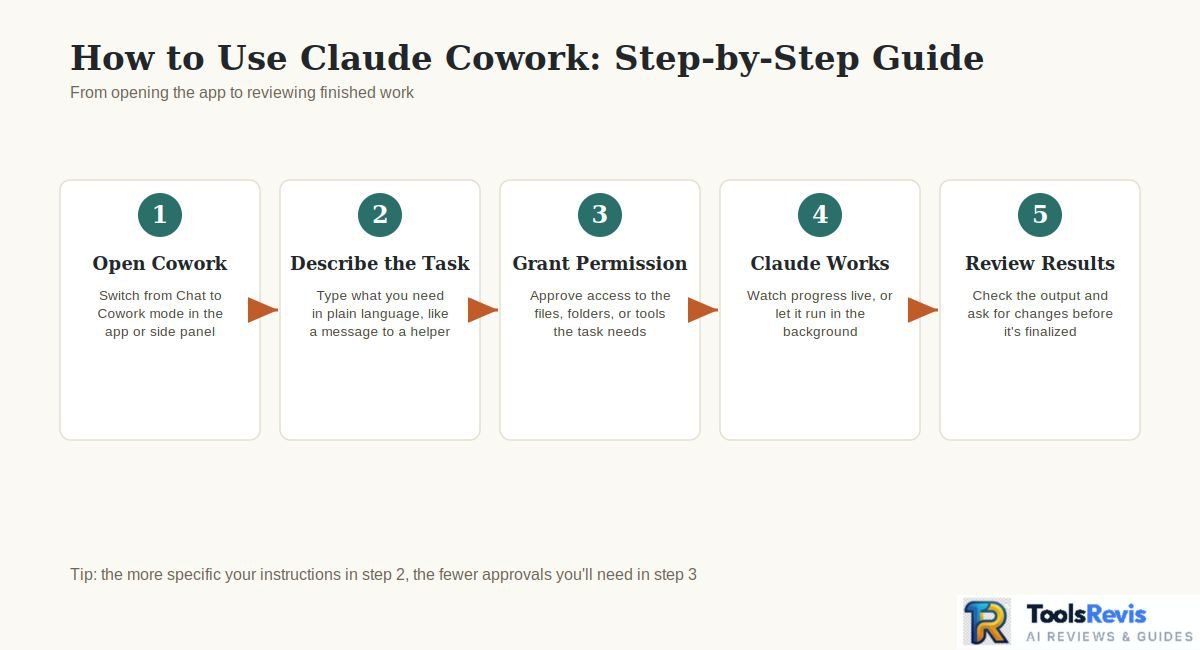
The current access path is straightforward:
- Open Claude on a supported desktop, web, or mobile surface.
- Start from the main Home or message area.
- Find the message box.
- Select Cowork from the mode selector.
- Describe the task you want Claude to complete.
- Review the task and any requested permissions before allowing consequential actions.
On desktop, web, and mobile, Chat and Cowork share the same starting point. Selecting Chat returns you to a normal Claude conversation. On the Chrome side panel, opening the Claude panel starts a Cowork session directly — but side panel Cowork is currently available on Max and Team plans and is still rolling out to Pro, and Enterprise users need an admin to enable it.
For the fullest desktop experience, Anthropic recommends using the latest Claude Desktop app. Desktop Cowork can work with local files and supported desktop capabilities that aren’t available in exactly the same way on every other surface.
Is Claude Cowork Available on Windows?
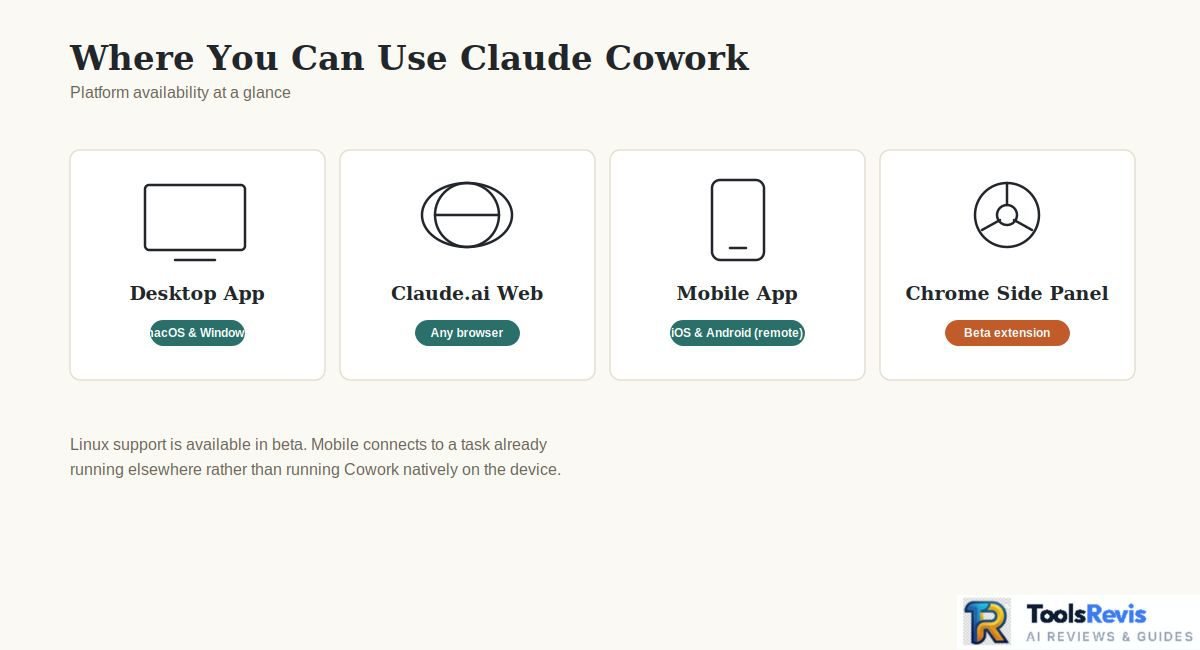
Yes. Claude Cowork is available on Windows for paid Claude plans, and desktop Cowork requires the latest Claude for Windows. Anthropic currently lists Cowork on Windows alongside macOS, with Linux support available in beta.
| Surface | Cowork availability | Important detail |
| Windows Desktop | Pro, Max, Team, Enterprise | Latest Claude for Windows required |
| macOS Desktop | Pro, Max, Team, Enterprise | Full desktop Cowork experience |
| Web | Pro, Max, Team; Enterprise where enabled | Cloud Cowork is currently beta |
| iPhone / Android | Pro, Max, Team; Enterprise where enabled | Latest mobile app required |
| Claude in Chrome (side panel) | Max and Team; rolling out to Pro; Enterprise where an admin has enabled it | Opens a Cowork session directly in the side panel |
| Linux Desktop (beta) | Paid plans | Debian-based distros only (officially tested); requires KVM virtualization enabled in BIOS/UEFI, user added to the kvm group, QEMU packages, ~25 GB free disk and 8 GB+ RAM |
Availability is not identical across platforms. For example, local file access and some desktop capabilities depend on the Claude Desktop app, while web and mobile Cowork run sessions in the cloud.
If you specifically want Claude Cowork download for Windows, use Anthropic’s official Claude download page rather than an unofficial installer. The current Windows desktop app supports Cowork, but it depends on hardware virtualization being available on your machine.
Cowork runs your tasks inside an isolated virtual machine, and the first launch downloads a Linux VM image of roughly 2 GB, so expect a few minutes of setup before your first task. If Cowork reports that virtualization isn’t available, enable it in your BIOS or UEFI settings and restart.
How to Set Up Claude Cowork
To set up Claude Cowork, install or update Claude on your chosen platform, select Cowork, configure the relevant workspace or project context, and start with a small task before giving Claude broader access.
For a desktop workflow, a practical setup is:
- Install or update Claude Desktop.
Make sure you’re running the latest version, particularly on Windows where the current Cowork experience requires the latest Claude for Windows. - Choose an appropriate working location.
For local workflows, connect only the folders Claude actually needs. Avoid giving a project unrestricted access to unrelated files. - Use a Project when the work is persistent.
Projects can group related files, instructions, context, and memory so recurring work has a consistent workspace. - Add relevant connectors or supported capabilities when necessary.
If the task depends on external services, use the appropriate supported connector rather than giving Claude unnecessary access elsewhere. - Start with a contained task.
Test Cowork with something like organizing a small documentation folder or creating a project brief before handing it a larger workflow. - Review permissions carefully.
Cowork can interact with files, browsers, connectors, and other capabilities depending on the setup. Anthropic recommends monitoring Claude’s work and reviewing permissions, especially for consequential tasks.
One important distinction for 2026 is that Cowork sessions can run in the cloud, while some access to your local computer still depends on the Claude Desktop app being open. For example, connected local folders and certain local capabilities require the desktop app to remain available.
How to Use Claude Cowork for Your First Task
To use Claude Cowork for a first task, choose Cowork, define a specific outcome, provide only the files or context it needs, review its approach and permissions, then inspect the finished result against your original requirements. This workflow works best when the task has several connected steps and a clear deliverable.
The easiest way to learn how to use Claude Cowork is to start with one realistic task rather than experimenting with a complicated automation. For developers, a good first project is turning scattered project notes and documentation into a concise developer brief.
Suppose your folder contains requirements, Markdown documentation, meeting notes, and a changelog. Instead of asking Claude to summarize each file separately, give Cowork the complete outcome you want.
Start a Cowork Task
Select Cowork from the message box and choose a task that benefits from multiple steps or meaningful workspace context. Anthropic’s current workflow is to describe the task, review Claude’s approach, and then let it work. Cowork provides progress information and lets you steer the session while it is running.
For a first developer task, you could use:
Review the files in this project folder and create a concise developer brief covering the project purpose, architecture, important decisions, unresolved issues, and recommended next steps. Use the existing files as the source of truth and flag conflicting information rather than guessing.
That instruction gives Claude a specific destination instead of simply saying, “Analyze this folder.”
Give Claude Clear Instructions
A strong Cowork task brief should define six things:
Goal + Inputs + Scope + Output + Success Criteria + Constraints
For example:
- Goal: Create a developer project brief.
- Inputs: Requirements, Markdown documentation, meeting notes, and changelog.
- Scope: Use only the supplied project materials.
- Output: A structured Markdown document.
- Success criteria: Include architecture, decisions, unresolved issues, and next steps.
- Constraints: Do not invent missing technical details; flag contradictions.
This structure makes it easier for Claude to determine what matters and gives you something concrete to evaluate afterward.
Avoid vague instructions such as:
“Look through these files and make them better.”
A better instruction tells Claude what successful completion looks like.
Add Files or Workspace Context
Give Cowork only the workspace context that the task actually requires. For local work, use a dedicated folder or an appropriate Project rather than exposing unrelated directories or sensitive files.
Cowork can work with connected local folders, and Projects can provide persistent files, instructions, context, and memory for related work.
For example, a developer might create a project containing:
- /docs
- /requirements
- /notes
- /changelog
and exclude unrelated folders containing credentials, financial records, personal documents, or production secrets.
This matters because Cowork’s access determines what Claude can read and potentially act on. Anthropic specifically recommends being selective about local file access and considering a dedicated working folder for Cowork tasks.
Review Claude’s Approach and Permissions
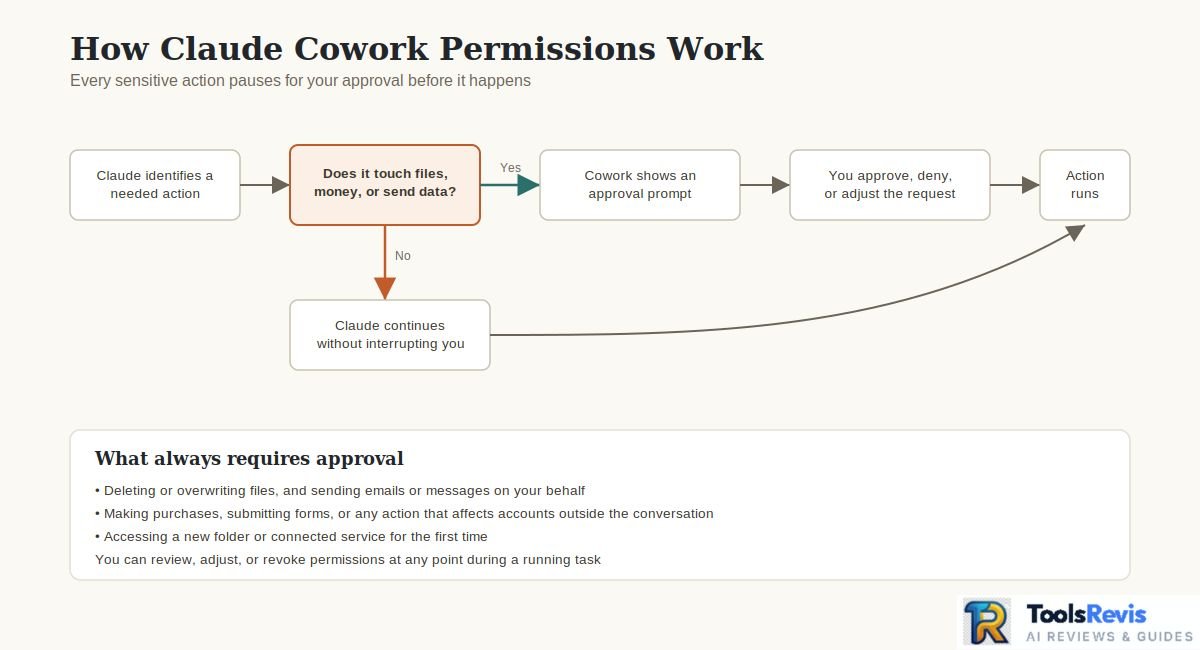
Review Claude’s proposed approach and permission requests before allowing consequential actions. This is one of the most important parts of using Cowork effectively because the system can perform multi-step work and, depending on your configuration, use connected tools or interact with files and applications.
For a documentation task, you might allow Claude to read the relevant project files but avoid giving it access to unrelated folders.
If Claude proposes an action outside your original scope, steer it before continuing:
Only use the project documentation and notes. Do not access unrelated folders or modify source code.
Cowork currently offers different approval modes, including manual approval and automatic approval. For higher-stakes tasks, Anthropic recommends staying close to the work and using manual approval where appropriate.
Review the Output and Refine the Result
Treat Cowork’s first result as a draft to verify, not as automatically correct. Review the final deliverable against the source files and your success criteria, then give Claude targeted corrections if something is incomplete or inaccurate.
For the developer brief example, check:
- Did Claude identify the correct project purpose?
- Are technical claims supported by the source files?
- Were conflicting requirements flagged?
- Are important decisions missing?
- Did Claude invent anything that wasn’t documented?
- Are the recommended next steps actually supported by the project context?
Then refine the task instead of starting from scratch:
The architecture section is accurate, but the unresolved issues are incomplete. Recheck the meeting notes and changelog, add any unresolved technical decisions, and clearly label information that remains uncertain.
That creates a useful review → steer → verify loop.
A good first Cowork workflow therefore looks like:
Define the outcome → Add relevant context → Review the approach → Approve appropriate access → Let Claude work → Inspect the result → Refine and verify
This is the core pattern to follow when learning how to use Claude Cowork effectively.
Claude Cowork Examples
Claude Cowork examples are strongest when the task involves several files, multiple processing steps, or a concrete deliverable that would take significant manual organization. For developers, that makes documentation analysis, project-file organization, research synthesis, and project-brief creation better starting points than terminal-heavy coding.
The following workflows focus on practical tasks rather than a long list of generic prompts. For each example, the important pattern is inputs → task brief → expected output → verification.
Organizing a Project’s Files
Cowork can help organize files inside a controlled working folder by classifying them, identifying duplicates or outdated material, and applying clearly defined naming rules.
Inputs: A dedicated project folder containing documents, notes, PDFs, and other project files.
Task brief:
Review the files in this folder, group them by project purpose, identify likely duplicates, and propose a consistent naming structure. Do not delete or overwrite anything without approval. Preserve the original files.
Expected output:
- Organized file categories
- Proposed or approved filenames
- Duplicate candidates
- Files that need manual review
Verification: Check the proposed classifications and filenames before allowing changes, particularly if the folder contains important originals.
Analyzing Developer Documentation
Cowork can synthesize multiple technical documents into a structured brief while preserving important differences and unresolved information.
Inputs: Requirements documents, Markdown files, specifications, meeting notes, and changelogs.
Task brief:
Analyze these project documents and create a technical brief covering the project purpose, architecture, major decisions, requirements, unresolved questions, and recent changes. Use only the supplied material and flag contradictions.
Expected output:
A concise document that gives a developer enough context to understand the project without manually reading every source file.
Verification: Compare important technical claims against the original documentation and confirm that Claude did not turn assumptions into facts.
Reviewing a Codebase or Project Files
Cowork can analyze code files and explain project structure, dependencies, patterns, and documentation gaps, but terminal-heavy software engineering is generally a better fit for a dedicated coding agent — see how the leading options stack up in our Cursor vs Codex comparison.
Inputs: A controlled set of source files, configuration files, README files, and project documentation.
Task brief:
Review this project and identify its major components, configuration structure, documentation gaps, and areas that require developer attention. Do not modify code. Cite the relevant files for each important finding.
Expected output:
- Project structure overview
- Major components
- Documentation gaps
- Potential inconsistencies
- Questions requiring developer review
Verification: Developers should inspect the relevant source files before acting on any technical recommendation. Cowork’s analysis should support engineering judgment rather than replace code-level testing.
Creating Documentation From Project Files
Cowork can turn existing project material into structured developer documentation without requiring you to manually assemble information from every source file.
Inputs: README files, source documentation, requirements, configuration explanations, and project notes.
Task brief:
Create developer documentation for this project using the supplied files. Include setup requirements, project structure, important configuration, common workflows, and troubleshooting information. Do not invent undocumented commands or requirements.
Expected output:
A README-style document or internal developer guide that consolidates information already present in the project.
Verification: Test important commands and setup instructions independently before publishing the documentation.
Researching and Summarizing Multiple Files
Cowork can combine information from multiple supported documents into one structured summary, which is useful when the relevant information is scattered across a project or research folder.
Inputs: PDFs, Markdown documents, text files, spreadsheets, or other supported materials.
Task brief:
Review all relevant files and produce a structured summary of the main findings. Group related information, identify disagreements between sources, and distinguish documented facts from unresolved questions.
Expected output:
A consolidated summary with clear source boundaries and unresolved items.
Verification: Check important conclusions against the underlying documents rather than relying solely on Claude’s synthesis.
Preparing a Project Brief
Cowork can turn scattered project material into a practical brief covering scope, decisions, risks, and next steps.
Inputs: Project notes, requirements, meeting summaries, existing documentation, and relevant planning files.
Task brief:
Create a project brief from these materials. Include the project goal, current scope, key decisions, known risks, open questions, dependencies, and recommended next steps. Do not introduce information that is not supported by the source material.
Expected output:
A short document that can be shared with developers, project managers, or other stakeholders.
Verification: Confirm that scope and decisions reflect the latest source material, especially when multiple documents contain conflicting information.
Reviewing and Improving Existing Content
Cowork can review existing documents and suggest improvements while keeping the original material as the source of truth.
Inputs: Existing articles, documentation, reports, or other written material.
Task brief:
Review this document for clarity, structure, factual consistency, and missing information. Preserve accurate technical claims, flag anything that needs verification, and provide suggested revisions separately rather than silently changing the original.
Expected output:
- Content issues
- Missing information
- Potential inconsistencies
- Suggested improvements
- Items requiring factual verification
Verification: Review every substantive change before publishing, particularly where technical or product claims are involved.
The common thread across these Claude Cowork examples is that Cowork adds the most value when there is a meaningful workflow to delegate. For straightforward questions, normal Claude Chat may be faster; for terminal-based development and repository changes, Claude Code is usually the more relevant tool.
Best Claude Cowork Use Cases
The best Claude Cowork use cases are multi-step knowledge and workspace tasks that involve files, research, organization, document creation, or project context rather than terminal-heavy software engineering. Developers can use Cowork around the coding workflow, while Claude Code is generally better for directly building, testing, and modifying software.
| Use case | What Cowork does | Best for | When not to use it |
| Developer documentation | Combines specs, notes, and existing docs into structured documentation | Developers and technical teams | When you need to execute or test code |
| Project research | Reviews multiple sources and produces a consolidated brief | Research-heavy projects | When a simple Claude Chat response is enough |
| File organization | Classifies and organizes files within a controlled workspace | Large project folders | When files are highly sensitive or unclear |
| Project briefs | Turns scattered project material into scope, risks, decisions, and next steps | Developers, PMs, teams | When the required information is missing |
| Documentation analysis | Finds themes, inconsistencies, missing information, and important details | Technical documentation | When conclusions require live system testing |
| Content review | Reviews and improves existing documents against defined criteria | Documentation and editorial workflows | When the content requires specialized human judgment |
| Multi-file summaries | Combines information from multiple supported files | Research and knowledge work | When only one short document needs summarizing |
Developer use cases
For developers, some of the strongest Claude Cowork use cases sit around the actual coding process rather than replacing the coding environment.
For example, you can use Cowork to turn a collection of requirements and engineering notes into a project brief before implementation begins. You can also use it to analyze existing documentation, prepare onboarding material, summarize changelogs, or generate a README from project files.
This makes Cowork useful before and after implementation:
Research → Planning → Documentation → Coding → Documentation/Review
Cowork is particularly valuable on the research, planning, and documentation sides of that workflow.
General knowledge-work use cases
Cowork is also suited to work that has nothing to do with programming. Examples include organizing a collection of documents, synthesizing research, preparing reports, restructuring existing content, or turning several source files into a single deliverable.
The important factor is not the industry. It is the shape of the task.
If the task can be described as:
“Here is the relevant context. Work through these materials, follow these rules, and produce this specific result.”
then Cowork can be a strong fit.
When Cowork is not the best choice
Cowork is not automatically the best Claude product for every task.
Use Claude Chat when you mainly need an explanation, brainstorming session, quick answer, or conversational assistance.
Use Claude Code when the task centers on software engineering, such as editing a repository, running commands, debugging, testing, implementing features, or working through a terminal-based development workflow.
Use Cowork when the work is primarily about delegating a multi-step knowledge or workspace task.
That distinction becomes especially important for developers because Cowork and Claude Code can appear to overlap while serving different workflows.
Claude Cowork for Developers
Claude Cowork is useful for developers when the work involves project context, documentation, research, file analysis, planning, or other knowledge work around software—not when the primary job is executing and modifying code through a terminal. Claude Code is purpose-built for the latter workflow.
This distinction helps avoid treating Cowork as a replacement for Claude Code. The two can complement each other: Cowork can prepare and organize the information surrounding a development task, while Claude Code can handle the hands-on software-engineering work.
Using Cowork With Code Projects
Cowork can work with code-project files when the goal is understanding, organizing, documenting, or analyzing the project rather than performing terminal-heavy engineering work.
For example, you could give Cowork a controlled project folder containing:
- README and documentation
- Requirements and specifications
- Markdown notes
- Changelogs
- Configuration documentation
- Selected source files
Then ask it to identify the project’s structure, summarize important decisions, find documentation gaps, or prepare an onboarding guide.
A useful instruction might be:
Review the supplied project files and create a developer brief explaining the project structure, purpose of each major component, important configuration, documented dependencies, and unresolved questions. Do not modify source code or infer undocumented behavior.
This keeps the task within Cowork’s strengths and gives you a concrete deliverable to verify.
Working With Project Documentation
Cowork is particularly useful for turning scattered software-project documentation into a consistent source of context.
A project might have requirements in one document, architectural decisions in meeting notes, changes in a changelog, and setup information in a README. Reading everything manually can make it difficult to see how those pieces fit together.
Cowork can consolidate that material into something such as:
- Project overview
- Architecture summary
- Key requirements
- Major technical decisions
- Recent changes
- Open questions
- Known risks
- Developer onboarding notes
The important safeguard is to tell Claude to distinguish documented facts from assumptions. If two project documents disagree, the output should flag the conflict rather than silently choosing an answer.
Analyzing Multiple Development Files
Cowork can analyze multiple development files to identify patterns, inconsistencies, missing documentation, and areas that deserve developer attention.
For example:
Review these project files and identify inconsistencies between the requirements, README, configuration documentation, and source-code comments. Do not change anything. For each finding, identify the relevant file and explain why it needs review.
This is more useful than asking for a generic “code review” because the scope and expected result are explicit.
For sensitive projects, use a dedicated working folder and provide only the files required for the task. Avoid exposing credentials, secrets, unrelated personal files, or production data simply because they happen to exist on the same computer.
Generating Developer Documentation
Cowork can generate developer documentation from existing project material, including README-style documentation, project briefs, onboarding guides, migration notes, and internal technical documentation.
For example, after reviewing a project folder, you could ask:
Create an internal developer onboarding guide using the supplied project documentation. Cover the project purpose, repository structure, setup requirements, major components, development workflow, and troubleshooting information. Do not invent commands or requirements that are not supported by the source material.
The resulting document should still be tested and reviewed by a developer. A polished explanation is not proof that a setup command actually works.
When to Use Cowork Instead of Claude Code
Use Cowork when the primary task is understanding, organizing, researching, or documenting a software project; use Claude Code when the primary task requires hands-on software engineering.
| If you need to… | Better fit |
| Summarize project documentation | Cowork |
| Turn requirements into a project brief | Cowork |
| Analyze several project documents | Cowork |
| Create developer onboarding docs | Cowork |
| Organize project files | Cowork |
| Research and consolidate technical material | Cowork |
| Modify source code | Claude Code |
| Run terminal commands | Claude Code |
| Debug an application | Claude Code |
| Implement and test a feature | Claude Code |
| Work through a repository as an engineering task | Claude Code |
The simplest decision rule is:
If the deliverable is primarily information or documentation, Cowork is often a good fit. If the deliverable is working software, Claude Code is usually the better fit.
For a developer workflow, they can therefore work together rather than compete: Cowork can prepare the context and documentation, while Claude Code handles the implementation and engineering loop.
Claude Cowork vs Claude Code vs Claude Chat
Claude Chat is best for conversational questions and interactive reasoning, Claude Cowork is designed for delegated multi-step knowledge and workspace tasks, and Claude Code is designed for hands-on software engineering. The right choice depends primarily on what you want Claude to produce and how much direct interaction with files or development tools the task requires.
| Tool | Best for | Typical workflow | File/workspace access | Coding/terminal role |
| Claude Chat | Questions, explanations, brainstorming, analysis | Ask → discuss → refine | Depends on the files/context you provide | Limited compared with Claude Code |
| Claude Cowork | Multi-step knowledge and workspace tasks | Goal → context → plan → execution → review | Can work with supported files, folders, projects, and connections | Useful around development work, but not primarily a terminal coding environment |
| Claude Code | Software engineering | Inspect → plan → edit → run → test → iterate | Designed around development projects and repositories | Core purpose |
The distinction is less about which product is “more powerful” and more about which workflow you are trying to accomplish.
Claude Cowork vs Claude Code for Developers
For developers, choose Cowork when the main task is project knowledge or documentation, and choose Claude Code when the main task is implementing, debugging, testing, or modifying software.
Consider a new application project.
You could use Cowork to:
- Read the requirements and meeting notes.
- Consolidate the project’s documentation.
- Prepare a technical project brief.
- Analyze several specifications.
- Create developer onboarding documentation.
- Identify inconsistencies between project documents.
- Prepare migration or release documentation.
Then move the actual engineering work to Claude Code:
- Inspect the repository.
- Implement the feature.
- Modify source files.
- Run commands.
- Run tests.
- Debug errors.
- Iterate on the implementation.
That creates a practical workflow rather than forcing one Claude product to handle every type of task.
Why use Cowork if Claude Code can do many things?
The reason to use Cowork is that its workflow is centered on delegated knowledge and workspace tasks, while Claude Code is centered on the software-engineering loop.
There is genuine overlap. Both can work with project-related information, and both can be useful to developers. The difference becomes clearer when you look at the desired deliverable.
If you have 30 project documents and want a structured technical brief, Cowork is a natural fit.
If you have a bug in a repository and need Claude to inspect the code, change several files, run tests, and iterate on the failure, Claude Code is the more appropriate choice.
So the decision should not be:
“Which Claude product can technically do more?”
Instead, ask:
“What kind of work am I delegating?”
For a developer, that usually means:
Project research/documentation → Cowork
Conversation/reasoning → Claude Chat
Implementation/testing/debugging → Claude Code
This distinction also explains why Claude Cowork vs Claude Code is not necessarily a competition. They can be complementary parts of the same development workflow.
Is Claude Cowork Free? Plans, Access, and Usage
Claude Cowork is not included with Claude’s Free plan; it is available with eligible paid plans, including Pro, Max, Team, and Enterprise. Cowork does not require a separate Cowork subscription, but your normal Claude plan limits and usage capacity still apply.
Anthropic currently positions Cowork as a feature for paid Claude users rather than a standalone product that you purchase separately. The exact experience can vary by plan, organization settings, platform, and feature rollout.
| Plan | Cowork access | Individual pricing |
| Free | Not included | Free |
| Pro | Included | $17/month billed annually ($200/year), or $20/month billed monthly |
| Max 5x | Included | $100/month |
| Max 20x | Included | $200/month |
| Team | Included | Standard seats: $20/seat/month billed annually, or $25/month billed monthly. Premium seats: $100/seat/month billed annually, or $125/month billed monthly (5x more usage than Standard). Seat types can be mixed. For 2 to 150 users. |
| Enterprise | Included (admin toggle; off/on at org level) | $20/seat/month plus usage billed at API rates, scaling with the model and task. Annual billing only. A self-serve tier is available alongside the traditional sales-assisted option. |
Pricing and availability should be checked against Anthropic’s current plan documentation before publication because plans and feature access can change.
Is Claude Cowork Included With Claude Pro?
Yes. Claude Cowork is included with eligible Claude Pro subscriptions; you do not need to purchase a separate Cowork add-on. However, having Pro does not mean every Cowork capability is identical across every platform or that usage is unlimited.
For an individual user who wants to experiment with Cowork, Pro is therefore the entry-level paid option in Anthropic’s current plan structure. See our Claude Pro vs Max comparison for usage limits.
Your available Cowork experience can still depend on the surface you use. Desktop, web, and mobile Cowork do not necessarily provide identical capabilities, and some features may be in beta or subject to rollout.
Does Claude Cowork Cost Extra?
Cowork itself does not carry a separate per-feature subscription fee on eligible paid plans, but Cowork activity uses your Claude plan’s available usage capacity.
This matters because an agentic task can involve substantially more work than a short conversational response. A task that requires Claude to inspect many files, perform multiple operations, or work through several steps can consume more of your available capacity.
In practice, think of the cost as:
Claude subscription → Cowork access → usage capacity consumed by your tasks
rather than:
Claude subscription + separate Cowork fee.
For that reason, a paid plan gives you access to Cowork, but it does not mean you can run unlimited large workflows without considering usage.
If you’re deciding whether Cowork is worth paying for, the important question is therefore not simply “Is Claude Cowork free?” but “Will I use enough multi-step workspace tasks to justify the Claude plan?” For occasional questions and simple summaries, regular Claude Chat may be sufficient. For recurring file-heavy workflows, research, documentation, and delegated project work, Cowork can provide substantially more value.
“`htmlNot sure which plan fits your actual usage? Try our Claude API Pricing Calculator to estimate your real monthly cost before you upgrade.
Claude Cowork Alternatives
Claude Cowork alternatives are worth considering when you need a different balance of local file access, automation, research, computer control, or software engineering. There is no universal one-to-one replacement, so the best alternative depends on whether your priority is workspace automation, coding, research, or broader agentic workflows. See our roundup of the best AI tools for developers.
| Alternative | Best for | Main difference | When to choose it |
| Claude Code | Software engineering | Built around repositories, terminal workflows, coding, and testing | Choose it when development is the primary task |
| ChatGPT | General-purpose AI work | Broad conversational, research, and tool-based workflows | Choose it when you need a wider range of general AI capabilities |
| Manus / general agentic assistants | Autonomous multi-step task execution | Different permission model and pricing structure | Choose it when you want an agent that runs tasks without a Claude subscription |
Our ChatGPT Plus vs Claude Pro comparison covers the subscription differences.
The important point is that these products overlap with Cowork in different ways. A coding agent may be a better alternative for developers, while a general AI assistant may be more suitable for research or everyday knowledge work.
Claude Cowork Limitations
Claude Cowork has important limitations around plan and platform availability, permissions, usage capacity, and task suitability. It can delegate substantial multi-step work, but you still need to understand what access Claude has, verify important outputs, and use Claude Code or regular Chat when those tools better match the task.
Plan and surface differences
Cowork availability and capabilities can differ between desktop, web, and mobile. Some features are also subject to beta status, rollout, plan eligibility, or organization-level controls.
This means you should not assume that a workflow available in Claude Desktop will behave identically in the web or mobile version.
For teams and enterprise users, administrator settings can also affect which capabilities are available.
Local vs. cloud behavior
Cowork does not provide identical local-computer access on every platform.
Desktop Cowork can work with local files and certain local capabilities, while web and mobile Cowork can use cloud-based workflows. The distinction matters if your task depends on files stored directly on your computer or other local resources.
Before starting a sensitive workflow, confirm where the relevant files are located and what access the current Cowork session actually has.
Permissions require attention
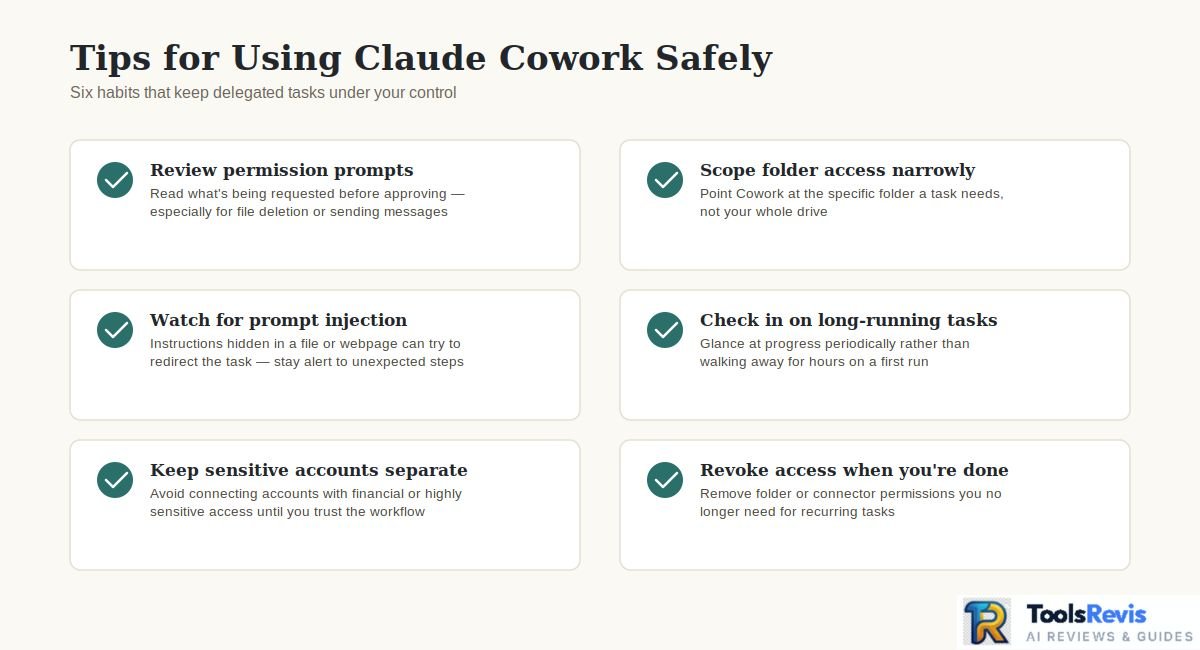
Cowork’s ability to perform actions makes permission management an important limitation rather than something to ignore.
If Claude has access to a folder, connected service, browser capability, or other tool, the scope of that access matters.
There is also a specific security risk worth naming: prompt injection. Because Cowork is agentic and can reach the internet, malicious instructions hidden inside a webpage, document, or connector response can attempt to redirect Claude’s behaviour. Anthropic applies safety measures including model training and content classifiers, but states the risk is non-zero. Practical mitigations: avoid granting access to files containing sensitive information, monitor Claude for suspicious actions, limit browser and web access to trusted sources, and report anything unexpected.
Team and Enterprise admins should also know that local Cowork conversation history is stored on the user’s computer and cannot be centrally managed or exported from the admin panel, and that Cowork activity can be streamed to a SIEM through OpenTelemetry for visibility into tool calls, file access, and approval decisions.
For safer workflows:
- Give Claude access only to relevant files.
- Use a dedicated working folder for sensitive tasks.
- Review permission requests before approving them.
- Prefer manual approval for consequential actions.
- Avoid exposing credentials, secrets, or unrelated personal information.
- Review changes before treating them as final.
Anthropic also recommends monitoring Cowork tasks rather than assuming the agent will always make the correct decision.
Usage capacity and limits
Cowork uses the usage capacity associated with your Claude plan, and complex agentic tasks can consume more capacity than simple chat interactions.
A workflow that reads many files, performs multiple operations, or requires repeated reasoning can therefore use considerably more capacity than a short question.
This makes task scoping important. If you ask Cowork to process an enormous folder without defining what matters, you may use capacity on irrelevant material and make the final result harder to review.
A better approach is to define:
Relevant files → specific objective → expected output → constraints
before starting the task.
Human review is still necessary
Important Cowork outputs should be reviewed before they are used as authoritative information or acted on.
This is particularly important for:
- Technical documentation
- Research summaries
- Financial or business information
- Security-related material
- Production project changes
- Decisions based on synthesized documents
- Content containing factual or regulatory claims
Cowork can organize and process information efficiently, but successful completion of a task does not guarantee that every conclusion or generated artifact is correct.
For developers, the safest mental model is:
Delegate the work, supervise the process, and verify the result.
That keeps Cowork useful without treating agentic automation as a substitute for human judgment.
Claude Cowork Best Practices
The best way to use Claude Cowork effectively is to give it a clearly scoped outcome, relevant context, explicit success criteria, and only the permissions it needs, then review important work before accepting it. Good Cowork workflows are controlled delegations rather than open-ended instructions.
Use a dedicated working folder for sensitive or local workflows
Keep Cowork’s working area separate from unrelated personal or production files whenever possible.
A dedicated folder makes it easier to control what Claude can access and reduces the chance that an unrelated file becomes part of a task.
For example, a developer might create:
Project-Cowork/
├── requirements/
├── documentation/
├── notes/
└── output/
Give Cowork access to the relevant project material rather than an entire drive containing unrelated information.
Start with a small real task
Test Cowork with a contained task before building a complicated workflow around Skills, Plugins, or multiple connected services.
A good first task could be:
Review these five project documents and create a two-page technical brief highlighting requirements, decisions, unresolved issues, and next steps.
This gives you an opportunity to understand how Cowork handles your files, instructions, permissions, and desired output before expanding the workflow.
Provide relevant context but constrain the scope
More context is not automatically better; give Claude the information that matters and explicitly define what is outside the task.
Instead of:
Analyze this entire project.
Try:
Review only the /docs and /requirements folders. Identify conflicting requirements and create a prioritized list of issues. Do not modify any files.
Clear boundaries make the task easier to supervise and reduce unnecessary work.
Define success criteria and output format
Tell Cowork what a successful result looks like before it starts working.
Include details such as:
- What the final deliverable should contain
- Who will use it
- Which sources are authoritative
- Required format
- Important exclusions
- How uncertainty should be handled
For example:
Create a Markdown developer brief with five sections: overview, architecture, requirements, unresolved issues, and next steps. Use the requirements document as the primary source and flag conflicts rather than choosing one without evidence.
This is much more reliable than asking for a vague “detailed report.”
Use Manual approval for higher-stakes work
Manual approval is preferable when a Cowork task could make consequential changes, access sensitive information, or interact with external services.
Review what Claude proposes before approving actions that could:
- Modify important files
- Move or delete data
- Send information externally
- Change project configuration
- Interact with sensitive services
For low-risk experimentation, a more automated workflow may be convenient. For consequential work, keeping yourself in the approval loop provides an important safety boundary.
Verify important outputs and source material
Always verify important Cowork results against the original sources before relying on them.
For a developer documentation task, check technical claims against the actual project files.
For research, verify important conclusions against the source material.
For generated commands, test them before putting them into a production workflow.
A useful instruction is:
Do not guess missing information. Clearly label anything that cannot be verified from the supplied sources.
This reduces the chance that a polished-looking result gets mistaken for a verified result.
Use Projects for persistent context
Projects are useful when you repeatedly work on the same subject and want related files, instructions, and context available together.
For example, a software project could maintain its requirements, documentation, design notes, and other relevant material in one Project rather than rebuilding the same context for every Cowork task.
This is especially useful for recurring workflows such as documentation maintenance, project research, and content production.
Use Skills and Plugins for repeatable processes
Skills and Plugins can make recurring workflows more consistent when you repeatedly perform the same type of task.
However, don’t introduce them simply because they are available.
First establish that the underlying workflow works manually. Once you know the required inputs, steps, and output, automation becomes easier to evaluate.
For example:
Manual workflow → validate result → standardize instructions → add reusable capability → test again
This is safer than building a complex automated system before you understand the task.
Use Claude Code for terminal-heavy development
Use Claude Code when the task becomes primarily about software engineering rather than workspace knowledge work.
If you need to inspect a repository, edit source code, run commands, execute tests, debug failures, or iterate on an implementation, Claude Code is generally the better fit.
Cowork can still support the surrounding work by preparing documentation, analyzing project material, or creating a development brief. If your team runs similar Cowork tasks repeatedly, it’s worth pairing this with Claude Code templates to standardize the engineering side once implementation begins.
Keep a review loop
A reliable Cowork workflow can be reduced to:
Define → Contextualize → Review → Approve → Execute → Verify → Refine
That approach gets the productivity benefits of Claude Cowork without assuming that the first autonomous result is automatically correct.
FAQ
What is Claude Cowork?
Claude Cowork is an agentic workspace in Claude for completing multi-step tasks across files, documents, research, and connected tools. Instead of answering one prompt at a time, Cowork can plan work, execute multiple steps, and let you review or steer the process.
How do I use Claude Cowork?
Open Claude, select Cowork from the message box or mode picker, describe the outcome you want, and provide the relevant files or context. Review Claude’s proposed approach and permissions, then let it work and check the final output before using it.
Is Claude Cowork free?
No. Claude Cowork is currently available on supported paid Claude plans rather than the Free plan. Availability and specific Cowork capabilities can vary by plan, platform, and organization settings.
Is Claude Cowork available on Windows?
Yes. Claude Cowork is available on Windows through supported Claude surfaces, including the Claude Desktop app. Some local-file and computer-use capabilities depend on the Windows desktop setup and required system permissions.
What can Claude Cowork do?
Claude Cowork can organize files, analyze documents, research information, create project briefs, generate documentation, review project materials, and complete other multi-step knowledge-work tasks. Its usefulness is highest when the task requires several related steps rather than a single answer.
Why does Cowork say virtualization isn’t available?
Cowork runs your tasks inside a virtual machine, so your computer needs hardware virtualization enabled. On Windows, enable it in your BIOS or UEFI settings and restart. On Linux, enable virtualization in firmware and add your user to the kvm group with sudo usermod -aG kvm $USER, then log out and back in and restart the app.
Does Claude Cowork keep running if I close my laptop?
Yes for cloud sessions — Cowork sessions continue running even when the desktop app is closed or your computer is asleep. But if the task needs your local files, your browser, or computer use, keep the Claude Desktop app open and connected, because those capabilities reach things on your machine.
Can developers use Claude Cowork?
Yes. Developers can use Cowork to analyze project files, review documentation, organize development materials, create technical documentation, and prepare project briefs. For tasks that require running commands, modifying a repository, debugging code, or working heavily in the terminal, Claude Code is usually the better choice.
Read Next
- Moving from planning into actual implementation? See how to use Claude Code in the terminal.
- Not sure which plan gives you enough usage for daily Cowork sessions? Compare Claude Pro vs Max.
- Want to see where Cowork fits next to other developer tools? Browse the best AI tools for developers.

I’m Umair Ahmad, founder of ToolsRevis. I personally test every AI tool we cover — signing up, running real workflows, checking pricing tiers, and comparing outputs — before writing a single word. My goal: cut through AI marketing hype with honest, hands-on verdicts.
Let’s achieve more together!