
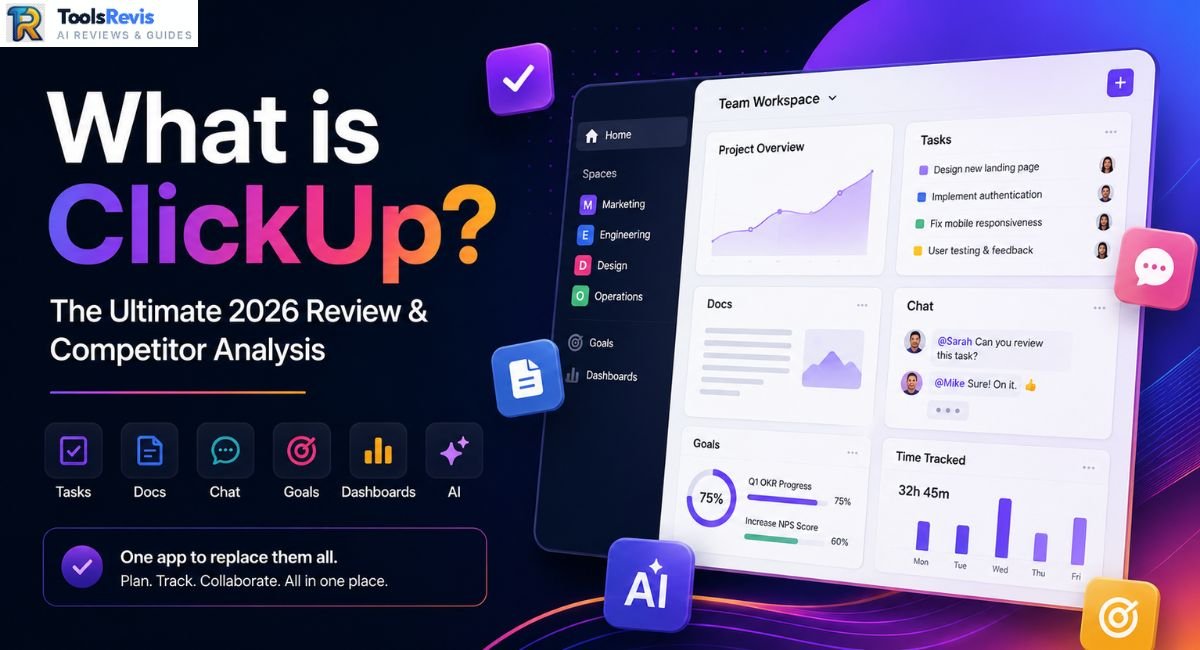
Every team has that one tool graveyard — five apps open, none of them talking to each other. ClickUp promises to bury that graveyard for good.
So, what is ClickUp, really — and is it actually worth switching to in 2026? If you’ve been Googling this question because your team’s tool stack has gotten out of hand (Slack for chat, Trello for tasks, Google Docs for notes, Zoom for meetings), you’re exactly who this platform was built for. ClickUp bundles all of that into one workspace, backed by an AI layer called Brain that’s had a pretty aggressive year of upgrades. In this guide, we’ll break down what it does, how it works, what the name even means, and whether it deserves the “digital workplace” label people keep giving it.
What is ClickUp Used For?
ClickUp is used to manage projects, tasks, documents, team communication, goals, and workflows from a single workspace. At its core, ClickUp is used to plan, track, and manage work — but that definition undersells how broad the platform actually is. Teams use it for:
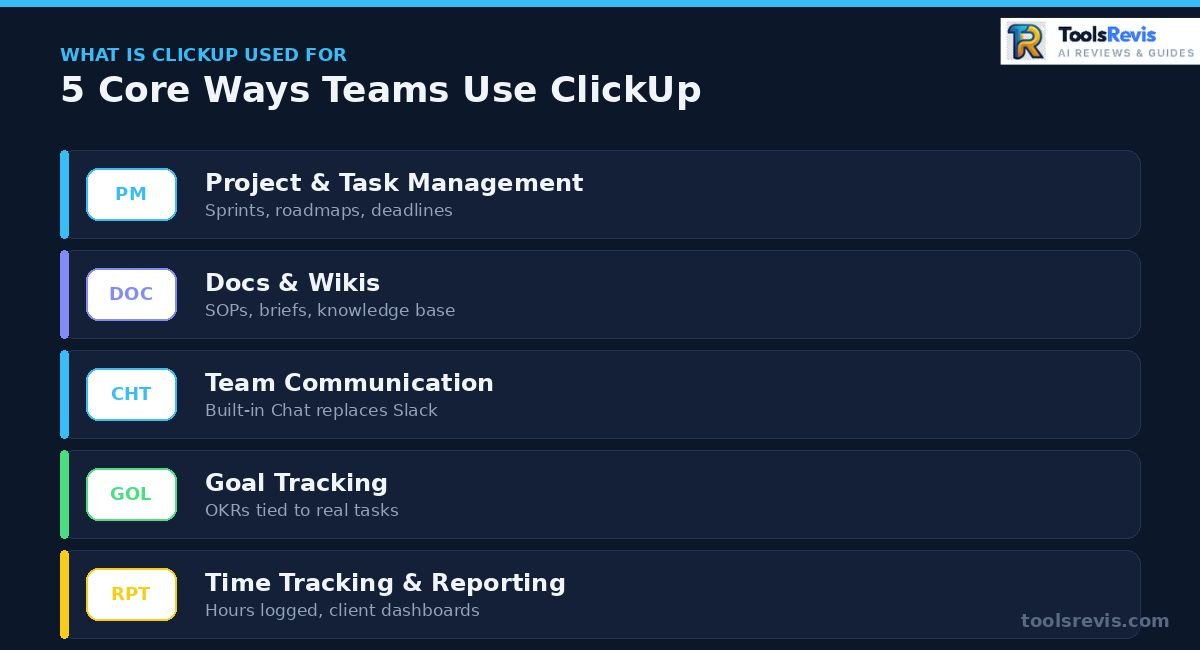
- Project & task management — sprints, roadmaps, and deadlines in one board
- Docs & wikis — writing SOPs, briefs, and knowledge bases without leaving the app
- Team communication — built-in Chat replaces the need for a separate messaging tool
- Goal tracking — OKRs and targets tied directly to the tasks that drive them
- Time tracking & reporting — logging hours and generating dashboards for clients or leadership
What makes ClickUp different from a plain to-do app is that it flexes across industries and team sizes. A marketing team might use it for content calendars, a dev team for sprint boards, and an HR team for onboarding checklists — all inside the same account, just structured differently by Space.
The bottom line: ClickUp isn’t built for one job. It’s built to be the operating system for how a team works, which is also why the learning curve is steeper than single-purpose tools like Trello.
Because ClickUp combines project collaboration, workflow management, and team collaboration tools, many companies use it instead of managing multiple separate applications.
How Does ClickUp Work?
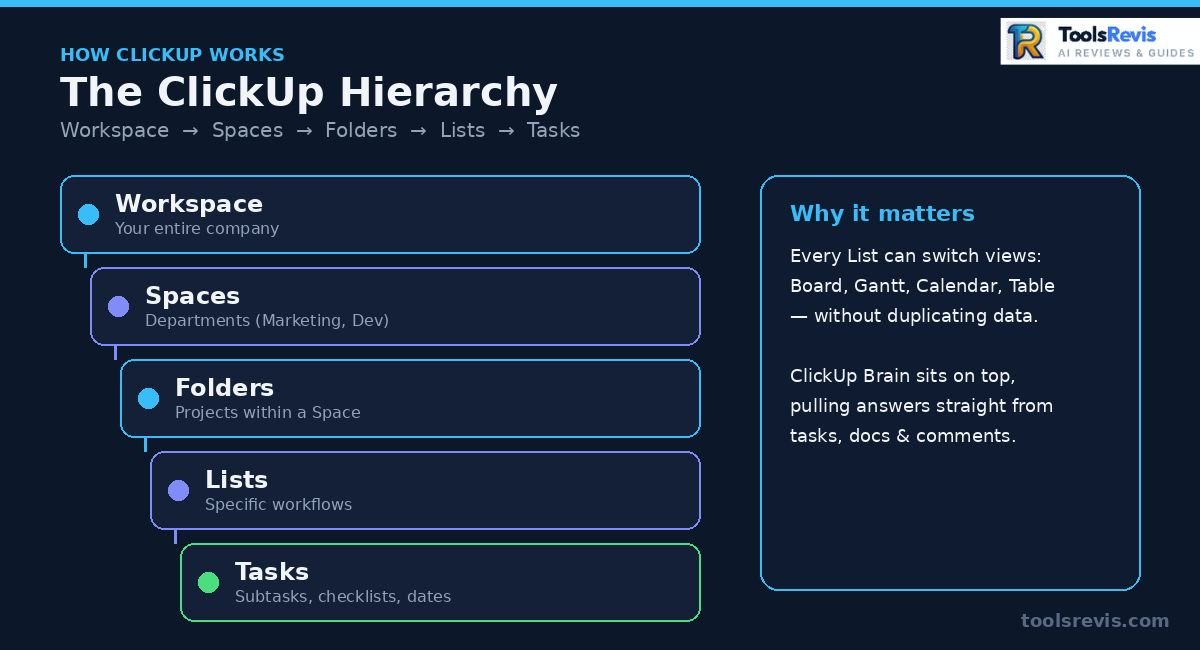
ClickUp works through a five-level hierarchy of Workspace, Spaces, Folders, Lists, and Tasks that keeps projects organized. ClickUp organizes everything through a hierarchy: Workspace → Spaces → Folders → Lists → Tasks. Think of it like nested folders on your computer, except each layer can carry its own settings, automations, and views.
Here’s the practical flow:
- You create a Workspace (your company or team’s home base)
- Inside it, you build Spaces for departments (e.g., Marketing, Engineering)
- Spaces break into Folders and Lists for specific projects
- Each List holds Tasks, which can have subtasks, checklists, due dates, and assignees
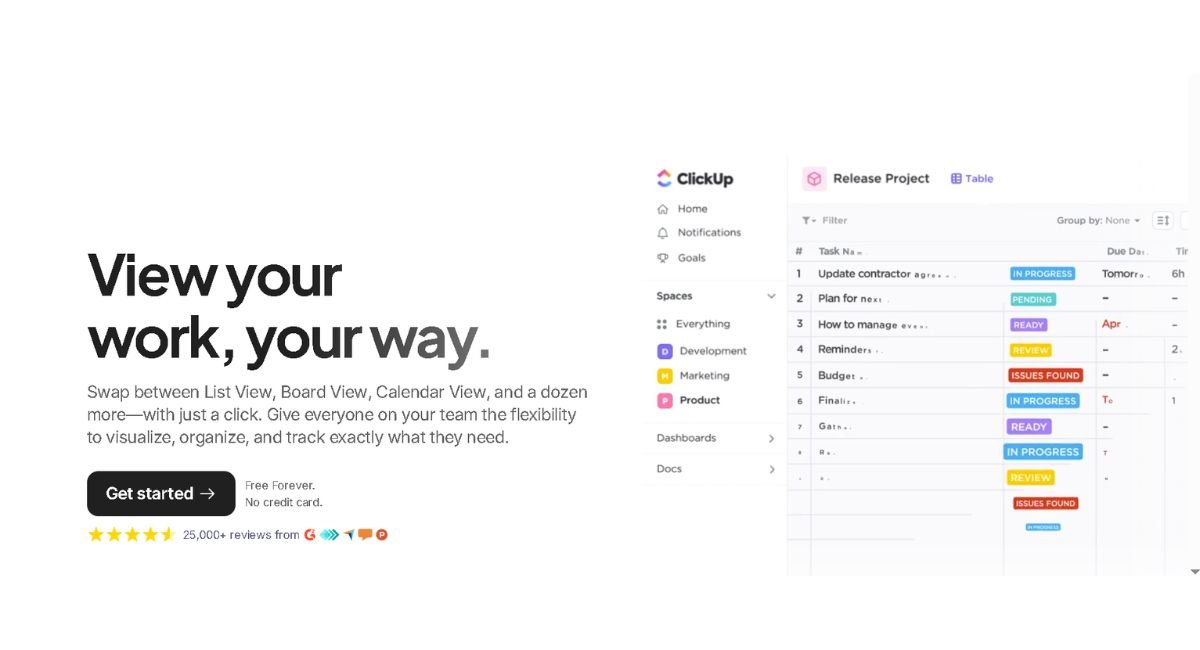
What sets ClickUp apart is that every list can be viewed differently — as a Kanban board, Gantt chart, calendar, or simple spreadsheet-style table — without duplicating data. Switch the view, not the tool.
On top of this structure sits ClickUp Brain, the AI layer that can summarize tasks, draft docs, and answer questions pulled straight from your workspace data. According to ClickUp’s own documentation, Connected Search can retrieve answers across tasks, docs, comments, and linked apps including Google Drive, GitHub, and Slack, complete with source citations — so you’re not just organizing work, you’re querying it like a database.
Is ClickUp a Digital Workplace Software?
A digital workplace platform combines communication, collaboration, documentation, and project management into one system, and ClickUp fits this definition. Yes — and this is arguably the more accurate label than “project management tool.” A digital workplace platform is software that centralizes the tools a team needs to actually do their jobs: tasks, docs, chat, calendars, and increasingly, AI assistance — all under one login.
ClickUp fits this definition because it doesn’t stop at task boards. It includes:
- ClickUp Docs for writing and collaborating on documents
- ClickUp Chat for real-time team messaging
- Whiteboards for brainstorming and planning visually
- Goals & Dashboards for tracking company-wide progress
- Brain / Brain MAX for AI-assisted work across the entire workspace
This positioning matters for how you evaluate the tool. If you’re comparing ClickUp only against Trello or Asana, you’re comparing it against project management tools. But if you’re comparing it against Notion, Monday.com, or Microsoft’s Viva suite, you’re comparing digital workplaces — and that’s the more accurate lens.
The tradeoff of this breadth is setup time. A true digital workplace platform takes longer to configure properly than a single-purpose app, since you’re essentially designing your team’s entire operating structure, not just a task list.
ClickUp Features Overview
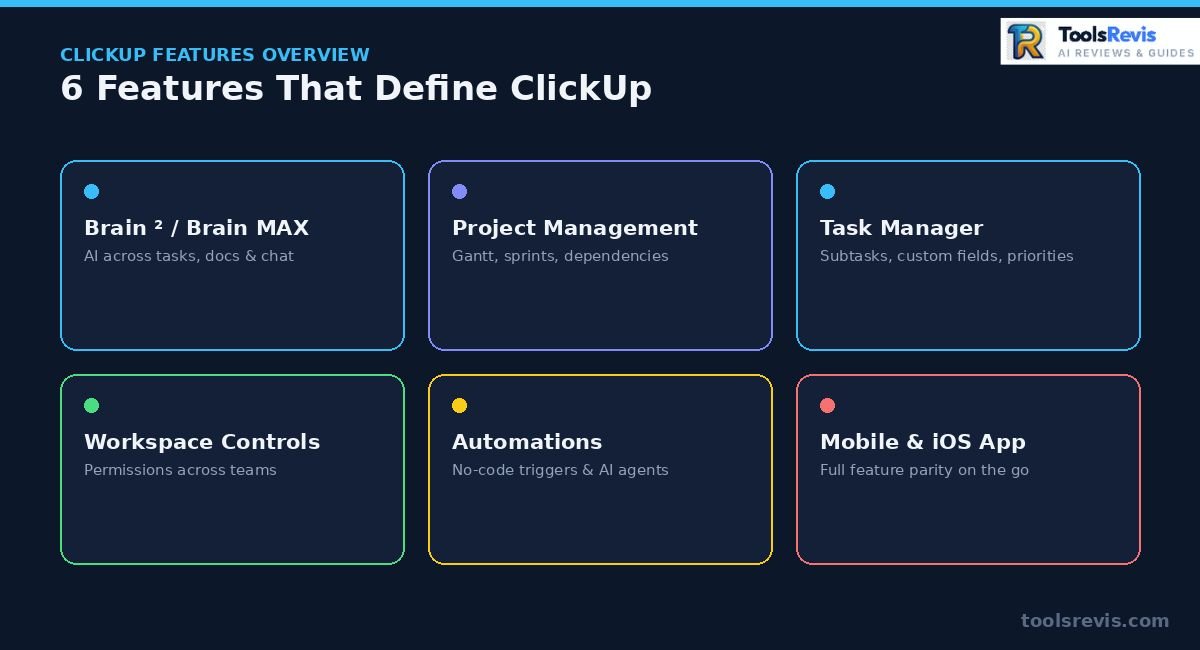
ClickUp features include task management, AI, automation, Docs, Whiteboards, dashboards, and multiple project views. ClickUp’s feature list is long enough to be intimidating, so here’s the breakdown of what actually matters, organized by category.
ClickUp AI Platform & Brain MAX Explained

ClickUp Brain is ClickUp’s built-in AI layer, and in June 2026 the company introduced Brain² as a major upgrade to the platform’s AI capabilities. Brain² is designed around ClickUp’s workspace context, combining tasks, docs, chat, dashboards, meetings, and other work data with AI models, tools, MCP connections, and background agents.
The practical difference is important: ClickUp is positioning Brain² as more than a chatbot. It is designed to use workspace context and connected tools to help complete multi-step knowledge-work tasks, while routing work across different AI models.
Brain MAX extends ClickUp’s AI experience beyond the core workspace, giving users another way to interact with Brain and connected work information. ClickUp has positioned Brain MAX as part of its broader AI ecosystem alongside Brain², rather than as a completely separate replacement for the main ClickUp workspace.
For teams already living inside ClickUp, this AI layer removes a lot of the “let me go check three other apps” friction that used to slow down status updates and reporting.
For teams needing dedicated deep reasoning outside of workspace tasks, standalone subscriptions like ChatGPT Plus vs Claude Pro remain a strong alternative.
ClickUp for Project Management
ClickUp’s core strength is combining project management with Docs, communication, automation, dashboards, and AI in the same workspace. Teams can manage sprints, dependencies, milestones, and project views without moving the underlying work into another application.
The advantage is flexibility: the same project data can appear as a list, board, calendar, timeline, or Gantt view. The tradeoff is configuration complexity, especially for teams that only need straightforward task tracking.
Agile Software Development & Engineering Setup in ClickUp
Software and web development teams have their own way of working, and ClickUp lets them set things up so it actually fits Agile and Scrum style workflows. From tracking bugs the right way to keeping sprints and backlogs organized, here’s how dev teams can set ClickUp up properly.
ClickUp for Software Development
Development teams can use ClickUp for sprint planning, backlogs, bug tracking, dependencies, and development workflows. Its flexibility makes it useful for teams that want project management and documentation in one workspace, although specialized tools such as Jira may still offer deeper engineering-specific workflows.
ClickUp Automation Features
ClickUp’s Automations let teams set trigger-based rules — for example, “when a task moves to Done, notify the assignee’s manager” — without writing any code. Templates cover common scenarios like status changes, due date reminders, and task assignment shifts.
For more advanced needs, ClickUp’s Brain 2 platform adds background agents that can be built via natural-language instructions and triggered on workspace events to execute multi-step actions, pushing automation beyond simple if-this-then-that rules into something closer to an AI teammate handling repetitive workflows on its own.
These automation features reduce repetitive work and improve overall business workflow efficiency.
ClickUp Mobile & iOS App
ClickUp’s mobile apps (iOS and Android) mirror most of the desktop functionality — task creation, comments, time tracking, and now, thanks to Brain MAX’s mobile rollout, AI-assisted search and voice dictation on the go.
It’s not a stripped-down companion app; teams can realistically manage a project entirely from a phone if needed, which matters for field teams or anyone who isn’t desk-bound for most of their day.
ClickUp Pricing & Free Plan — What’s Actually Free?
ClickUp offers a Free Forever plan alongside paid plans with additional storage, automation, AI, and business features. ClickUp’s Free Forever plan genuinely has no time limit — you can stay on it indefinitely, not just during a trial window. It includes unlimited tasks and unlimited members, which is generous compared to competitors. The catch is in the limits: The free tier has storage and feature-use limits, including 100 Automation Actions per month. ClickUp resets Automation Action usage at the beginning of each month, so the limit is not a lifetime cap.
ClickUp Pricing in 2026
ClickUp pricing can vary by Workspace because the company is rolling out new plan structures while some Workspaces still use the existing plans. The safest way to compare cost is to check the plan and AI options shown for your Workspace rather than relying on one universal price table.
The current plan structure documented by ClickUp includes Free Forever and, depending on the Workspace, paid tiers such as Unlimited, Business, Business Plus, Enterprise, or the newer Core and Max options. AI capabilities and usage limits also vary by plan.
For readers comparing ClickUp in 2026, the important questions are not just the advertised monthly price. Check the number of users, AI usage, Automation Actions, guest/member billing, storage, and the specific features your team needs before upgrading.
Worth noting: monthly billing runs roughly 40% higher than the advertised annual rates, so the sticker price you see on ads assumes a yearly commitment.
The Hidden Costs: Guest Seats & Mandatory Workspace AI Fee
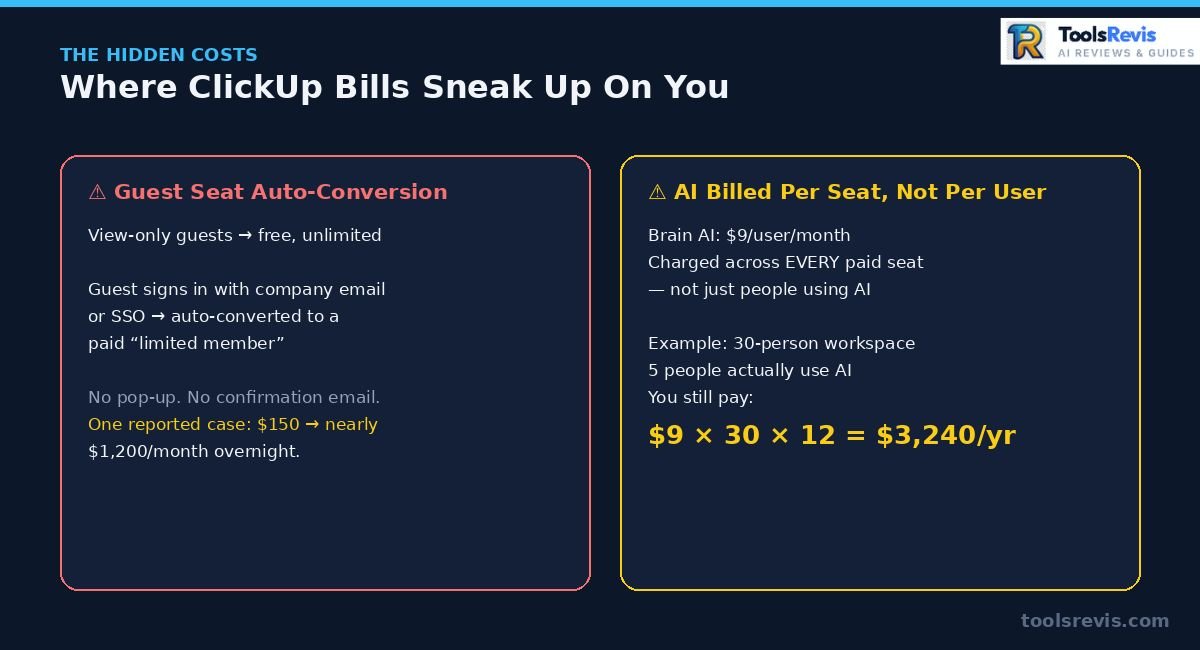
This is where ClickUp pricing gets genuinely confusing, and it’s a recurring theme in user complaints. Guest seats are supposed to be free for clients or contractors who just need view access. Guest and limited-member billing can affect the final cost, so teams should check ClickUp’s current user-role pricing rules before inviting external collaborators, regardless of what permissions they actually have — and that conversion can happen with no warning.
ClickUp’s AI cost can become significant for larger teams because pricing and AI access depend on the Workspace’s plan and AI configuration. Before enabling AI across a large team, check whether the feature is billed per user, included in the plan, or subject to usage or credit limits.
ClickUp Pros and Cons
ClickUp’s biggest strengths are flexibility and feature depth, while its biggest weaknesses are complexity and pricing transparency. Here’s the balanced breakdown, based on verified user reviews and pricing audits:
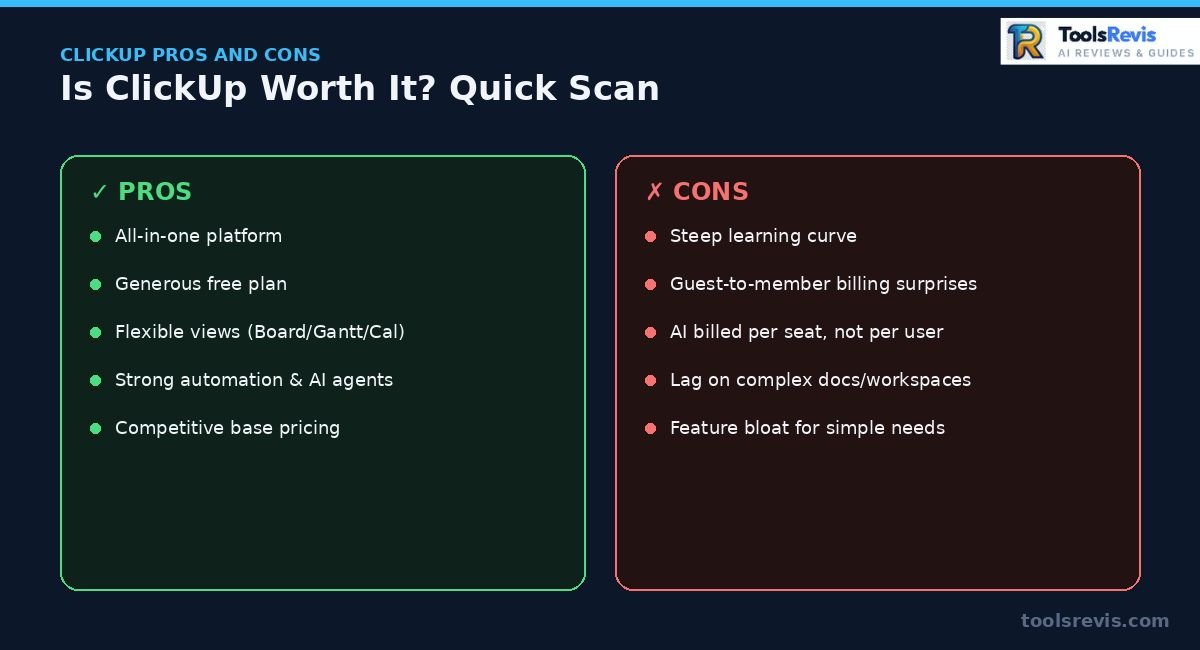
| Pros | Cons |
| Genuinely all-in-one — replaces docs, chat, and task tools | Steep learning curve — configuration options can overwhelm new users |
| Free plan is usable long-term, not just a trial | Guest/member billing can be complex and may increase costs unexpectedly |
| Flexible views (board, Gantt, calendar) on the same data | AI costs can vary by Workspace and plan, not per actual AI user |
| Strong automation for repetitive workflows | Performance lag reported on complex docs and large workspaces |
| Competitive base pricing vs. Monday or Asana | Feature bloat — many teams use a fraction of what’s offered |
| Built-in AI (Brain) with multi-model support | Each Workspace bills separately, complicating multi-department setups |
The pattern across most reviews: ClickUp wins on breadth and value, but loses points on complexity and billing transparency — two issues that show up constantly in community discussions, which we’ll get into next.
What Reddit Users Are Saying About ClickUp (Real Experiences)
Reddit users generally praise ClickUp’s flexibility but frequently criticize its learning curve, performance, and AI pricing. Review sites tend to be polished. Reddit isn’t — which makes it one of the more honest places to gauge how people actually feel about ClickUp day to day. Here’s what recurring threads reveal.
The “WTF is ClickUp?” Confusion — New Users’ First Impressions
A common thread pattern among first-time users: they land in a fresh Workspace and have no idea where to start. The sheer number of Spaces, Folders, Lists, custom fields, and view options creates a genuine “what am I even looking at” moment — especially for people coming from simpler tools like Trello or a basic to-do app.
The upside mentioned repeatedly is that once someone spends a weekend setting things up properly (or copies a solid template), the confusion fades fast. But the consistent advice from experienced users to newcomers is the same: don’t try to configure everything on day one. Start with one Space, one workflow, and expand only once the basics feel natural. This onboarding friction is one of the most common early complaints — people find the tool before they find a clear starting point.
ClickUp Chat & AI Pricing Debates on r/clickup
Threads about ClickUp Chat replacing Slack tend to split opinion — some teams appreciate not paying for a separate messaging tool, while others feel Chat still lags behind dedicated messaging apps in speed and notification handling.
The bigger, more heated debate is around AI pricing. Since Brain is billed per seat across the whole Workspace rather than per active user, teams with even a handful of AI users end up questioning whether the add-on is worth doubling their bill for. Some pricing analysts have noted the AI add-on can cost roughly 75% of the Business plan’s own price — a steep markup for teams that only need it for a handful of users. It’s consistently one of the most debated cost decisions among teams evaluating ClickUp.
Brain MAX AI — Mixed Reviews from Real Users
Feedback on Brain MAX, the standalone AI app, is genuinely split. Power users who’ve adopted it into their daily workflow like having one AI command bar that searches across ClickUp, Google Drive, Slack, and GitHub without switching tabs — a real time-saver for anyone juggling multiple tools.
On the other side, some users find it redundant if they already pay for a separate AI subscription (like ChatGPT or Claude directly), since Brain MAX essentially wraps those same models behind another paywall. There’s also a learning curve to figuring out when to use Brain MAX versus the in-app Brain assistant, since the two overlap in places. The general sentiment: valuable for teams fully committed to the ClickUp ecosystem, less compelling for teams that already have an AI tool they’re happy with.
Bugs vs New Features — The Biggest Community Complaint
This is probably the single most consistent gripe across user feedback: ClickUp ships new features fast, sometimes faster than it stabilizes existing ones. Reviewers frequently mention lag on complex documents, occasional crashes when generating AI content inside Docs, and UI glitches after major updates like the recent ClickUp 4.0 rollout.
The tradeoff users describe is real — a platform this feature-dense is going to have rough edges somewhere, and ClickUp’s release pace means new capabilities show up constantly. But for teams relying on ClickUp for daily operations, “wait for the next patch” isn’t always an acceptable answer, which is why performance stability comes up so often in community threads alongside genuine praise for the feature set itself.
Support Response Delays — What Users Report
Customer support response times are another recurring complaint, particularly for users on lower-tier plans. Free and Unlimited plan users often report longer wait times for ticket resolution compared to Business and Enterprise customers, who get access to more direct support channels.
This isn’t unique to ClickUp — most SaaS platforms tier their support by plan — but it stings more here because ClickUp’s complexity means users are more likely to hit a confusing bug or configuration issue that needs actual human help, not just a help doc. The practical workaround experienced users suggest: lean on ClickUp’s University resources and community forums for common issues, and reserve direct support tickets for genuine bugs.
ClickUp vs Monday, Jira & MS Project — Reddit Engineers Weigh In
Among technical teams, the comparison conversation is fairly consistent. Developers who’ve used both often describe ClickUp as more flexible and customizable than Jira, while noting Jira’s reputation for being slow and prone to breaking despite its deep agile feature set. That said, some engineers push back and note Jira works well specifically when kept in its vanilla configuration with minimal custom workflow rules — meaning the “Jira is bad” take often depends on how heavily a team has customized it.
Against Monday.com, the split is more about audience: Monday tends to win praise for simplicity and ease of setup, while ClickUp wins on depth and total feature count. Against Microsoft Project, ClickUp is generally seen as the more modern, collaborative option — MS Project still shows up in enterprise threads mainly for its legacy scheduling capabilities that some large orgs are contractually locked into.
Why Developers Resist ClickUp (And How GitHub Automations Fix It)
There’s often a gap between managers and developers. Managers love ClickUp’s dashboards, but developers see updating ClickUp as extra paperwork. The fix is to stop updating tasks by hand and instead use GitHub or GitLab automations. When a developer creates a branch, pushes code, or merges a pull request, ClickUp can automatically change the task status to “In Review” or “Closed” — so nobody has to update it manually.
Is ClickUp Legit? Trust Signals & Reviews
ClickUp is a legitimate project management platform trusted by startups, agencies, and enterprise organizations worldwide.Yes, ClickUp is a legitimate, well-established platform—not a fly-by-night SaaS tool. A few trust signals worth knowing:
- Founded in 2017, with a substantial user base across startups, agencies, and enterprise teams
- SOC 2 compliance and stated policies against using customer workspace data to train AI models
- Active, transparent changelog — ClickUp publishes detailed release notes for nearly every update, which is unusual compared to competitors
- High review volume on platforms like Capterra and G2, with consistently strong ratings for feature depth, tempered by recurring notes on complexity and pricing structure
The legitimacy isn’t really in question — the real due diligence for anyone considering it seriously should focus on fit and cost structure, not trust. It’s a real, actively developed platform; the decision comes down to whether your team needs its breadth or would be better served by something leaner.
ClickUp vs Microsoft Teams — Which One is Better?
ClickUp and Microsoft Teams serve different purposes, with ClickUp focusing on project management and Teams focusing on communication. This comparison confuses people because Teams and ClickUp aren’t solving the same problem. Microsoft Teams is primarily a communication tool — chat, video calls, and file sharing, built to live inside the Microsoft 365 ecosystem. ClickUp is a work management platform — tasks, docs, goals, and project tracking, with chat as a secondary feature layered on top.
If your team already lives in Microsoft 365 (Outlook, SharePoint, Excel), Teams wins on integration — everything syncs natively without extra setup. But if your team needs actual project tracking — task assignments, deadlines, Gantt charts, sprint boards — Teams simply wasn’t built for that. Its task features (via Planner) are thin compared to ClickUp’s.
The realistic verdict: many teams use both. Teams for company-wide comms and meetings, ClickUp for project execution. Where friction shows up is when a team tries to force Teams into project management duty because switching platforms feels like too much effort — that’s usually when task visibility starts slipping through the cracks. If Teams’ task tracking feels inadequate for your team, that’s a legitimate reason to add ClickUp alongside Teams rather than replace it outright.
ClickUp vs Notion & Asana
ClickUp, Notion, and Asana differ mainly in workflow flexibility, documentation capabilities, and project management depth. Notion, Asana, and ClickUp all get compared constantly because they overlap on docs and task management — but they optimize for different things. Notion prioritizes flexibility and note-taking, Asana prioritizes simplicity for task tracking, and ClickUp prioritizes doing everything in one place.
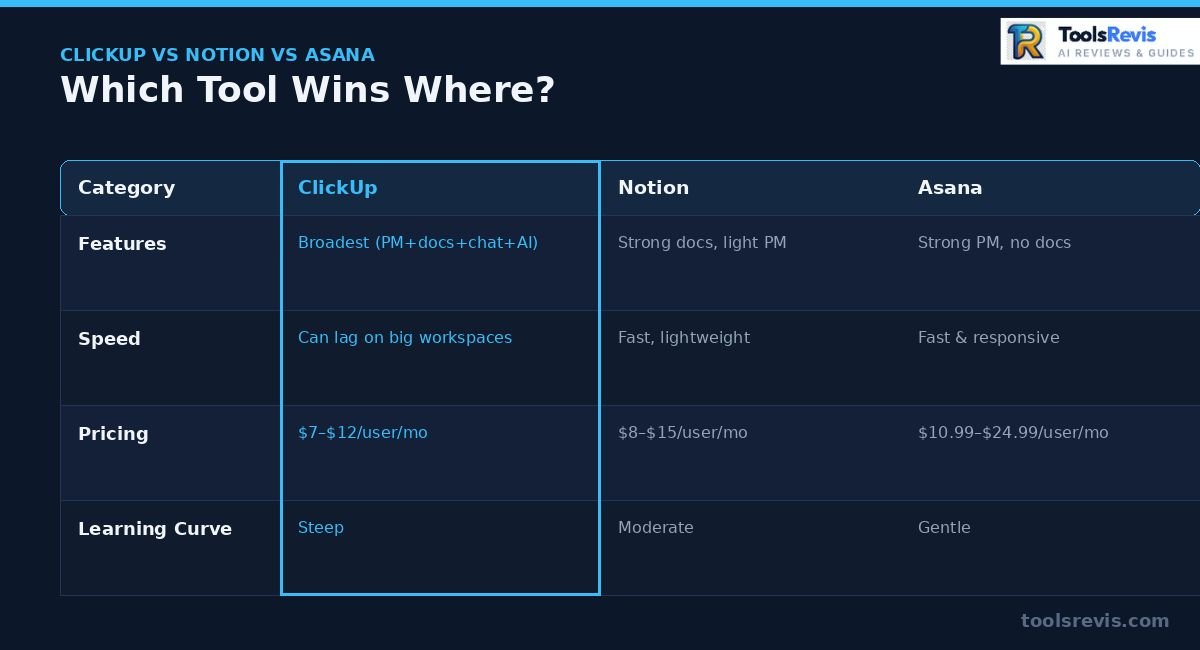
| Category | ClickUp | Notion | Asana |
| Features | Broadest — PM, docs, chat, goals, AI | Strong docs/wiki, weaker native PM | Strong task/PM, no native docs depth |
| Speed | Can lag on complex docs/large workspaces | Generally fast, lightweight | Fast and responsive |
| Pricing | Free plan available; paid tiers vary by Workspace | Free plan available; AI add-ons priced separately | Free plan available; paid tiers scale by seat |
| Learning Curve | Steep — many configuration options | Moderate — flexible but unstructured | Gentle — straightforward setup |
Bottom line: Notion wins if your priority is a clean knowledge base with light task tracking. Asana wins if you want the simplest possible task manager. ClickUp wins if you want one platform to do both — and are willing to spend time configuring it.
ClickUp for Startups & Enterprise Teams
ClickUp supports both startups and enterprise teams with scalable plans, permissions, and collaboration tools. For startups, ClickUp’s Free Forever plan is a genuinely strong starting point — unlimited members and tasks at zero cost cover most early-stage needs. As the team grows and starts needing more automation, reporting, storage, or AI capabilities, paid plans can provide additional capacity and features without requiring several separate SaaS subscriptions.
For enterprise teams, ClickUp scales differently — Business Plus and Enterprise tiers add SSO, white-labeling, unlimited custom roles, and granular permissions needed for larger orgs with compliance requirements. The tradeoff at this scale is billing complexity: each Workspace upgrades and bills separately, so a company running multiple departments as separate Workspaces needs to actively manage seat counts across each one to avoid overpaying.
Where ClickUp fits best at the enterprise level is companies replacing multiple disconnected tools with one platform, since the cost savings compound with headcount. Where it fits worst is orgs that need deep, specialized functionality in one area — heavy-duty engineering teams often still prefer Jira’s dev-specific depth over ClickUp’s broader but shallower dev tooling.
Heavy-duty engineering teams often prefer specialized AI tools for developers alongside Jira for deep code reviews and sprint execution.
Who Should NOT Use ClickUp?
ClickUp is not the best choice for users who want a simple task manager or dislike complex software. ClickUp isn’t the right fit for everyone, and it’s worth being upfront about that instead of pretending one tool works for every team.
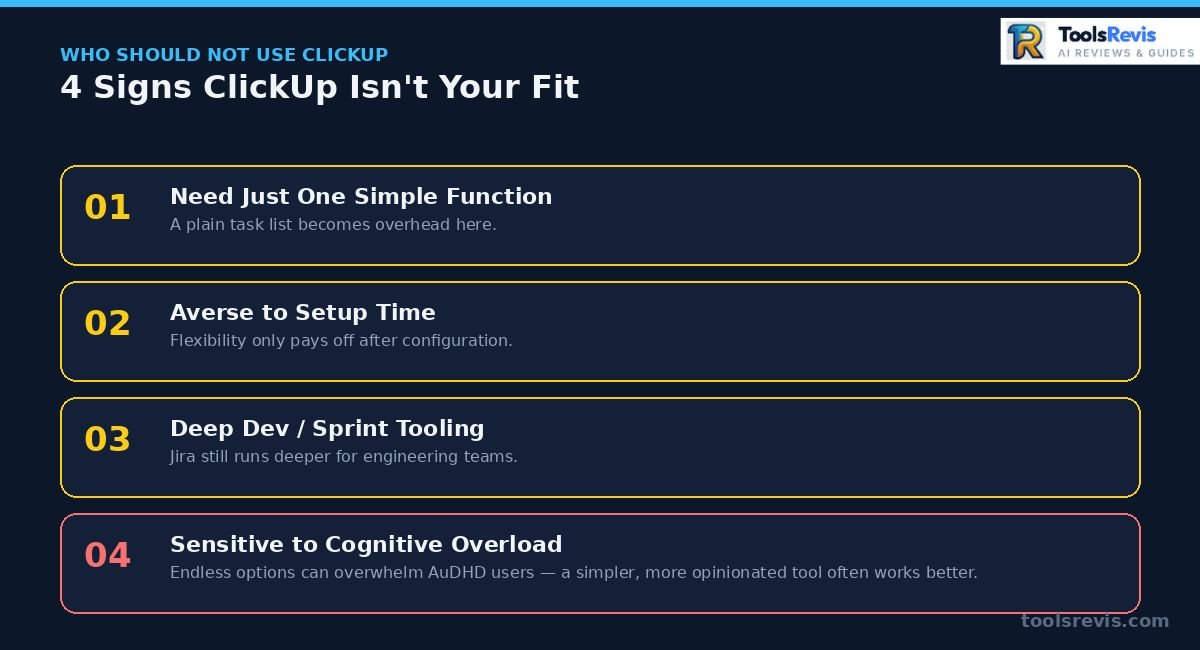
- Teams that need one simple function — if you just need a task list, ClickUp’s depth becomes overhead, not value
- Solo users or small teams averse to setup — the payoff of ClickUp’s flexibility only shows up after configuration time you may not want to spend
Users who find highly customizable interfaces overwhelming may prefer a simpler task-management tool with fewer configuration options.
Still unsure if ClickUp is the right fit for your team?
Answer 2 quick questions about your use case and budget, and let our interactive finder recommend the ideal AI software for your workflow.
🔍 Find Your Ideal Tool in 2 Steps →How to Log In & Get Started with ClickUp
Getting started with ClickUp only requires creating an account, setting up a workspace, and organizing your first project. Getting started with ClickUp takes a few minutes:
- Go to clickup.com and click “Get Started” or “Log In” if you already have an account
- Sign up with an email address, or use Google, Apple, or Microsoft SSO for faster login
- Create your Workspace — this is your company or team’s home base
- Choose a starting template (or skip and build from scratch) based on your team type — marketing, dev, agency, personal
- Invite team members via email, or generate a shareable invite link
- Set up your first Space, List, and a handful of tasks to get a feel for the interface
If you’re logging in from a previous account, the login page auto-detects your Workspace based on your email domain. For teams using SSO, admins can enforce it Workspace-wide under Settings → Security, which also controls who counts as a billable member versus a free guest — worth checking early, given the billing quirks covered in Part 2.
ClickUp Security — Is Your Data Safe?
ClickUp protects customer data through encryption, compliance standards, and enterprise security controls. For a platform holding company-wide docs, tasks, and increasingly AI-processed data, security is a fair question. ClickUp maintains SOC 2 Type II compliance, meaning it’s been independently audited for how it handles data security, availability, and confidentiality.
On the AI side, ClickUp states that customer workspace data is not used to train AI models — a meaningful distinction for companies wary of feeding proprietary docs into a shared AI training pipeline. Data is encrypted both in transit and at rest, and Enterprise plans add SSO (SAML), advanced permissions, and audit logs for organizations with stricter compliance needs.
For most small-to-mid-size teams, ClickUp’s baseline security is solid and comparable to other established SaaS platforms in this category. The bigger practical risk isn’t a data breach — it’s permission misconfiguration, like accidentally leaving a Space visible to guests who shouldn’t have access. Since ClickUp’s permission system is granular, it’s worth an admin actually reviewing sharing settings rather than assuming defaults are locked down.
Final Verdict — Is ClickUp Worth It in 2026?
ClickUp is worth considering in 2026 for teams that need an all-in-one productivity platform and are willing to invest time in setup. After three parts covering what ClickUp is, what it costs, and what real users say — here’s the honest line: ClickUp is worth it if you’re willing to invest setup time for long-term consolidation. It genuinely can replace several separate tools, and the free plan alone is one of the most generous in the category.
Where it loses points consistently — performance lag on complex workspaces, a steep learning curve, and pricing structures and Workspace-specific billing rules that require active management to avoid overpaying. None of these are dealbreakers, but they’re not minor either.
Best fit: teams tired of paying for four disconnected tools and willing to spend a week setting things up properly.
Not the best fit: teams that want something simple out of the box, or individuals prone to cognitive overload from too many configuration choices. If that’s you, it’s worth trying the free plan first before committing to a paid tier — you’ll know within a week whether ClickUp’s structure helps or hinders how you actually work. Overall, ClickUp is one of the strongest business productivity software solutions for companies looking to improve work organization without relying on multiple disconnected apps.
Frequently Asked Questions
1. What is ClickUp used for?
ClickUp is used for project management, task tracking, docs, team chat, and goal tracking — all inside one platform. Teams use it to replace multiple separate tools with a single connected workspace.
2. Is ClickUp free to use?
Yes, ClickUp’s Free Forever plan has no time limit and includes unlimited tasks and members. It does cap storage and limits you to 100 Automation Actions per month, with the usage limit resetting at the beginning of each month.
3. Is ClickUp legit and safe based on real user reviews?
Yes, ClickUp is a legitimate, SOC 2-compliant platform with a large, active user base and transparent release notes. Reviews consistently praise its feature depth while flagging performance lag and pricing complexity as the main downsides.
4. What is ClickUp AI / Brain MAX?
ClickUp Brain is the platform’s built-in AI for summarizing tasks, writing docs, and answering questions from workspace data. Brain MAX is a standalone desktop and mobile app that extends that AI outside ClickUp, searching across connected tools like Google Drive and Slack.
5. Is ClickUp good for project management?
Yes — Gantt charts, sprints, dependencies, and multiple view types make it a strong project management tool. Its flexibility is a genuine strength for teams with varied workflows across departments.
6. Does ClickUp have a lot of bugs? (Reddit feedback)
Community feedback points to occasional lag and glitches, especially on complex documents or right after major feature updates. It’s a known tradeoff of ClickUp’s fast release pace, though it’s not usually described as a dealbreaker by long-term users.
7. Is ClickUp better than Microsoft Teams or Monday.com?
It depends on the need — Teams is built for communication, not project tracking, so ClickUp wins there. Against Monday.com, ClickUp offers more depth and features, while Monday is generally seen as easier to set up.
8. Does ClickUp have a mobile app?
Yes, ClickUp has full-featured iOS and Android apps that mirror most desktop functionality, including task management and time tracking. Brain MAX is also now available as a separate mobile app for AI-assisted work on the go.
9. How much does ClickUp Chat cost?
ClickUp Chat is included in all paid plans at no extra cost, replacing the need for a separate messaging tool like Slack. It’s not available as a standalone product outside of a ClickUp Workspace subscription.
10. Is ClickUp overwhelming for beginners?
Yes, initially — the number of Spaces, views, and custom fields creates a real learning curve for new users. Starting with one simple workflow and a template, rather than configuring everything upfront, makes the onboarding far less overwhelming.
11. Does ClickUp work offline?
No. ClickUp is primarily a cloud-based platform and requires an internet connection for most features. Some recently viewed content may remain temporarily accessible through browser caching or the mobile app, but full offline functionality is limited.
12. Can ClickUp replace Jira?
Yes, ClickUp can replace Jira for many teams that need project management, task tracking, and collaboration in one platform. However, engineering teams with advanced Agile workflows may still prefer Jira’s specialized development features.

I’m Umair Ahmad, founder of ToolsRevis. I personally test every AI tool we cover — signing up, running real workflows, checking pricing tiers, and comparing outputs — before writing a single word. My goal: cut through AI marketing hype with honest, hands-on verdicts.
Let’s achieve more together!